Transferring files
Opening a file browser on an SSH or FTP server, uploading, downloading, editing — and what this version does not do.
Opening a file browser
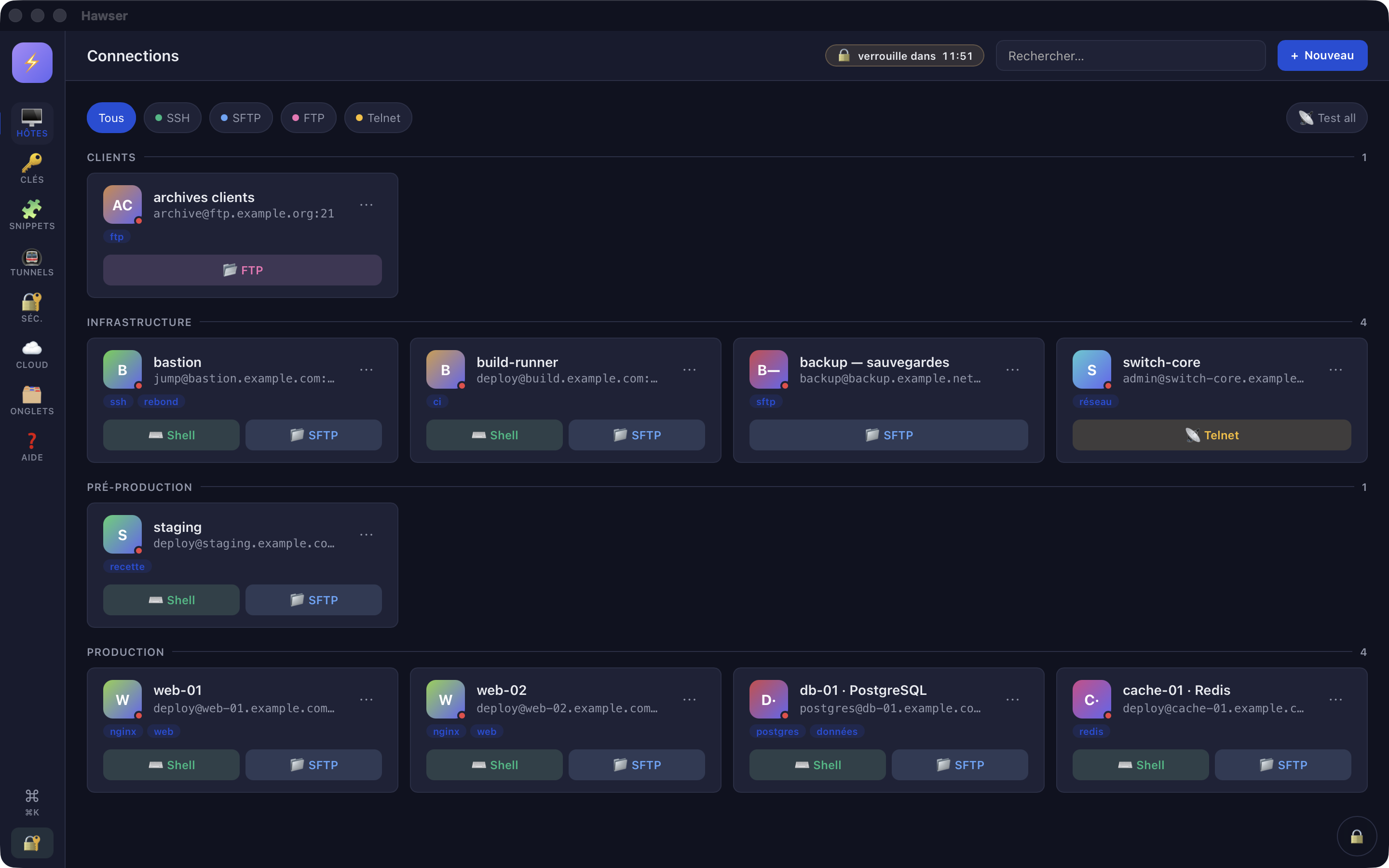
The file browser is a tab, just like a terminal. It opens from the host list, on an entry you have already created (see Adding a server).
- Sidebar → 🖥️ Hosts.
- On the host's card, click the protocol button. An SSH host shows two: ⌨️ Shell and 📁 SFTP. An FTP host shows only one: 📂 FTP.
- The application switches to the Sessions view and opens the tab in the active zone. The table fills as soon as the connection succeeds.
Starting folder
By default the tab opens on ., that is the user's home directory. To open somewhere else: Hosts → ⋯ → ✏️ Edit → General tab → “Path initial SFTP (optionnel)” (initial SFTP path, optional). Enter an absolute path, for example /var/www. This field is only offered for SSH hosts.
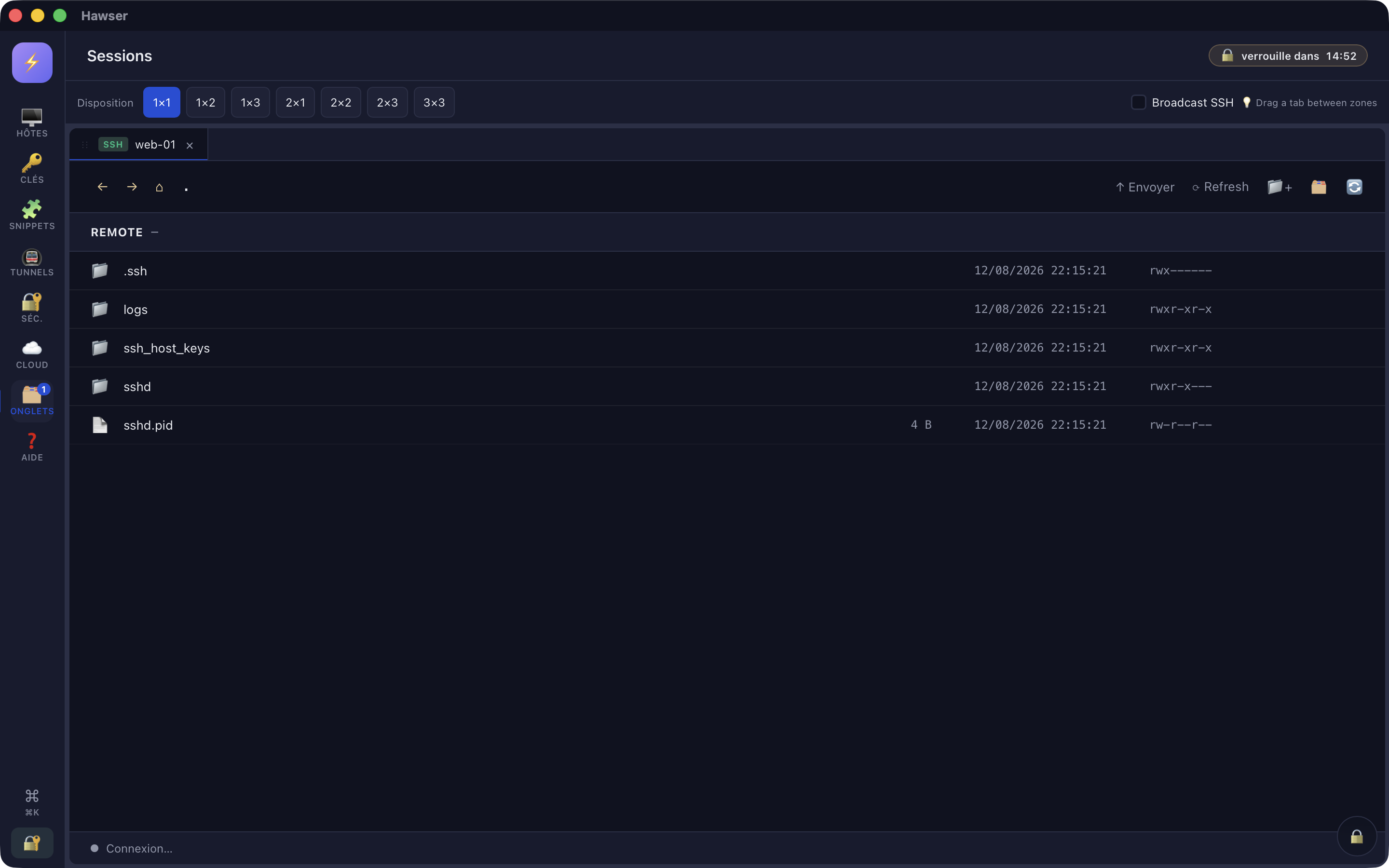
↑ Envoyer (Upload) button opens the macOS picker; each row has its own actions menu.Finding your way in the remote pane
The remote table shows five columns: name, size, modification date, the owner's POSIX permissions (rwxr-xr-x) and actions. The header row is hidden, and the last three columns only appear when you hover over the row. Without hovering, you only see names and sizes.
- Enter a folder: single click on the row.
- Go up: the ⌂ (“Parent”) button in the toolbar.
- Reload: the ⟳ Refresh button.
- Row menu: the ⋯ button at the end of the row, or a right-click anywhere on the row. Right-clicking is more reliable, since it does not ask you to aim at a button that is invisible at rest.
Sorting is imposed: folders first, then case-insensitive alphabetical order. Remote hidden files (.env, .ssh) are displayed.
Over FTP, the date column stays empty: the listing format returned by an FTP server is not a date that can be read reliably, and Hawser would rather show nothing than invent a timestamp.
Uploading files
Two routes lead to the same result, over SFTP as over FTP. The bytes travel straight from the disk to the socket, inside the native engine: a file of several gigabytes does not pass through the interface's memory.
With the Envoyer button
- In the tab, toolbar → ↑ Envoyer (Upload).
- The macOS “Fichiers à envoyer” (files to upload) dialogue opens. Multiple selection is accepted.
- Confirm. Each file joins the transfer queue and is dropped into the remote folder currently displayed.
- The table reloads at the end of each successful upload.
By dragging from the Finder
Drag one or more files from the Finder onto the REMOTE half of the tab. The area highlights as you hover; when you let go, the files join the queue and go to the folder displayed.
Following progress
Two indicators, in two different places in the window:
- The ⇅ badge at the bottom left, level with the navigation bar. A click unfolds the queue: one line per file, in the form
<name> — pending | running | done | err, with its progress bar. - The progress banner at the bottom right, which shows the file in progress, the bytes transferred and the total. It turns green on success, red on failure, then disappears.
Three uploads run in parallel at most; the rest wait. If one fails, a red toast names the file:
Échec de l'envoi de dump.sql : <message du serveur>Downloading a file
- Right-click the file's row (or the ⋯ button, on hover).
- ⬇️ Télécharger (Download).
- The macOS “Enregistrer sous” (Save as) dialogue opens, prefilled with the remote name. Choose the destination.
- Progress appears in the banner at the bottom right. At the end, a toast confirms:
Téléchargé : /Users/vous/Downloads/nginx.conf.
Downloading works over SFTP as well as FTP. If it fails, the toast reads Échec du téléchargement : <message>.
Creating, renaming, deleting
- Create a folder: toolbar → 📁+. A “Create folder” window asks for a name, created in the folder displayed. An empty field cancels.
- Rename or move: right-click the row → 🔤 Renommer. The field is prefilled with the current full path. Changing only the last segment renames the file; changing the beginning moves it somewhere else on the same server.
- Delete: right-click → 🗑️ Supprimer, then confirm at
Supprimer "<nom>" ?.
Editing a text file remotely
On an SSH host, right-click a file row → ✏️ Éditer (Edit). The file is read, then opened in a built-in editor with syntax highlighting guessed from the extension (.js, .json, .yaml, .conf, .sh, .py, .sql, .rs, and fifteen or so others). The Save button writes the file back to the server.
Two ceilings apply to reading, with explicit messages:
file too large (8388608 bytes, max 5242880)
not utf-8: invalid utf-8 sequence
In other words: beyond 5 MB, or for anything that is not UTF-8 text, the editor refuses to open. Download the file, work on it locally, send it back.
The LOCAL / REMOTE split pane
The 🗂️ button in the toolbar brings up a LOCAL half on the left. In its header, 📂 Choisir… (Choose…) opens the macOS folder picker and lists the contents of the folder you select. Clicking 🗂️ again hides the LOCAL half.
This pane is there to see what you have to hand while you browse remotely. It is not a transfer area.
The LOCAL pane cannot be browsed: clicking a subfolder does not move into it, you have to run 📂 Choisir… again. It has no refresh button either.
Organising your transfer tabs
A transfer tab behaves like a terminal tab. In the 🗂️ Tabs view, the top bar offers layouts from 1×1 to 3×3; a tab moves from one zone to another by its ⋮⋮ handle. A common arrangement: a server's terminal in one zone, its file browser in the zone next to it.
Closing the tab with its × cross closes the remote session cleanly. The “Broadcast SSH” tick box in the top bar only concerns terminal tabs, not transfers.
What this version does not do
A recap, to save you looking for a command that does not exist.
| Expected | Status |
|---|---|
| FTPS (FTP over TLS) | Missing. The tick box was removed from the interface because it had no effect. FTP sessions are in clear text. |
| Drag and drop between the LOCAL and REMOTE panes | Missing. Only dragging from the Finder works. |
| Resuming an interrupted transfer | Missing, in both directions. |
| Editing a remote file over FTP | Missing. Download, edit, send back. |
| Built-in preview | No effect in this version. |
| Changing permissions (chmod) | Missing. The permissions column is read-only. |
| Creating or following a symbolic link | Missing. Links are shown (🔗) but a click does not follow them. |
| Multiple selection, search, sorting by column | All missing. |
| Direct server-to-server transfer | Missing. It has to go through the Mac. |
| FTP server on Windows | The MS-DOS listing format is not parsed: the folder appears empty. |
For the other known gaps and diagnostic leads, see Limits and troubleshooting. FTP credentials, like everything else in your entries, stay encrypted in the vault — see What is encrypted — but that encryption protects the storage, not the connection.