Creating your vault
Hawser creates no vault on its own. Here is how to build your .ivault file, choose its master password and store it properly.
One vault, one file
A Hawser vault is a single file with the .ivault extension. It holds your hosts, your SSH keys, your snippets, your tunnels and your settings. It is encrypted: Argon2id key derivation, then AES-256-GCM encryption. The salt and the nonce are regenerated on every write, and the integrity of the content is verified on every open.
Hawser creates none at installation and opens none automatically at launch. As long as no vault is open, the window stays on the home screen: Ouvre un coffre chiffré ou crée-en un nouveau. (Open an encrypted vault or create a new one). This is deliberate — nothing is decrypted without your password, and the Récents (Recent) list is the only record of what exists on disk.
The .ivault format is shared with the other ILYGO applications. Hawser identifies a vault by the first bytes of the file (ILYV1 for the current format, OPV1 for the older .outpost format), never by the extension: renaming a vault does not break it, and a file that is not one is refused with an explicit message.
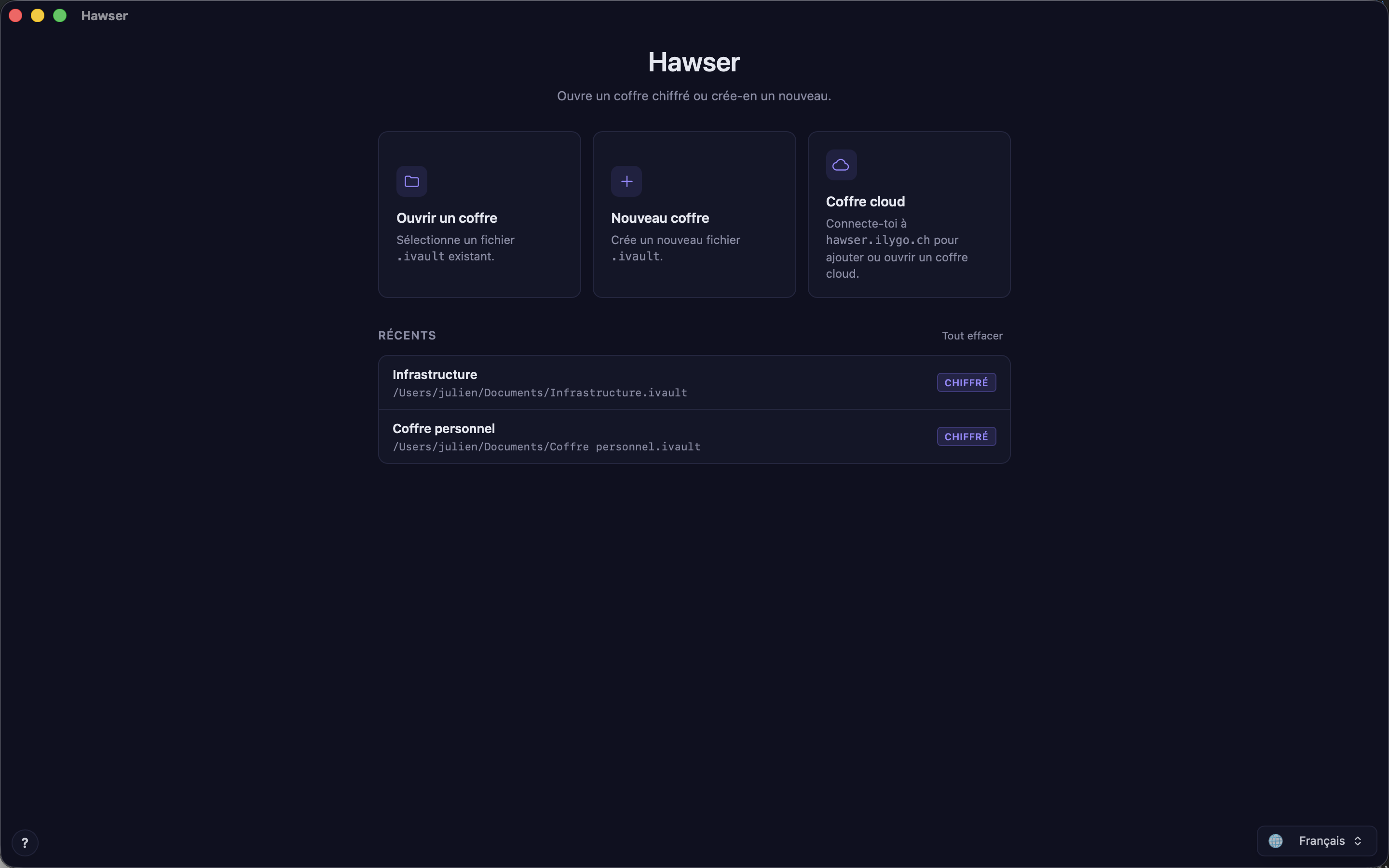
Creating the vault
- On the home screen, click the
Nouveau coffre(New vault) card (Crée un nouveau fichier .ivault.). - The macOS save panel opens, pre-filled with
My Vault.ivault. Choose the folder and the name, then confirm. - The
Créer un nouveau coffre(Create a new vault) dialogue opens. The full path of the file to come is shown as the subtitle: read it back, it is the only place it appears before the write. - Type the master password in
Mot de passe(Password), then identically inConfirme(Confirm). - Tick
J'ai compris et je garde mon mot de passe en lieu sûr.(I understand and I will keep my password somewhere safe). - Click
Créer(Create). The button showsCréation…, then the main application loads with the vault open.
The dialogue shows a fixed note: Chiffrement Argon2id + AES-256-GCM. Un mot de passe est obligatoire. (Argon2id + AES-256-GCM encryption. A password is mandatory.) There is no encryption tick box to clear. An unencrypted vault can no longer be created at all: the engine refuses with Un mot de passe est obligatoire : Hawser ne cree plus de coffre non chiffre. Only older unencrypted vaults can still be opened.
If the macOS panel offers to replace an existing file and you accept, creation fails with file already exists: <path> shown in red in the dialogue. Hawser never overwrites a file: start Nouveau coffre again with a different name.
Choosing the master password
Two profiles are accepted, one or the other:
- Strong password: at least 12 characters, and at least 3 classes among lower case, upper case, digits and symbols.
- Passphrase: at least 4 words separated by spaces, each of at least 3 characters.
No maximum length is imposed. Validation happens twice: when you press Créer, on the interface side, then on the engine side, which refuses with mot de passe refusé: (password rejected) followed by the reasons joined by · . No strength meter is shown on this screen: you only see the reasons for refusal.
| Input | Verdict | What Hawser says |
|---|---|---|
Cheval#Batterie7 | Accepted | 12 characters or more, 4 classes |
correct horse battery staple | Accepted | 4 words of at least 3 characters |
hunter2 | Rejected | Passphrase: il faut au moins 4 mots (tu en as 1) · Mot de passe: ≥ 12 caractères (tu en as 7) · Mot de passe: au moins 3 de {minuscules, majuscules, chiffres, symboles} (too few words, too short, too few character classes) |
administration | Rejected | Passphrase: il faut au moins 4 mots (tu en as 1) · Mot de passe: au moins 3 de {minuscules, majuscules, chiffres, symboles} (too few words, too few character classes) |
aa bb cc dd | Rejected | Passphrase: chaque mot ≥ 3 caractères · Mot de passe: ≥ 12 caractères (tu en as 11) · Mot de passe: au moins 3 de {minuscules, majuscules, chiffres, symboles} (words too short, password too short, too few character classes) |
Where to put the file
The save panel lets you choose the location freely. Three common cases:
- Local disk (
~/Documents, the Desktop, a folder of your own): the most predictable case. Nothing leaves the machine. - iCloud Drive: the file follows your devices, but read the warning below before you decide.
- USB stick or external volume: possible. The vault becomes unreachable as soon as the volume is unmounted, and its row in
Récentsswitches to the redintrouvable(not found) badge.
Right after creation: local or cloud
About half a second after the main application loads, a Où votre coffre doit-il vivre ? (Where should your vault live?) dialogue appears. It shows only once, when a local vault is created.
🔒 Local uniquement(Local only) — "Le coffre reste sur cet appareil. Rien ne quitte votre disque. Recommandé si vous n'utilisez qu'une seule machine.": the vault stays on this device, nothing leaves your disk, recommended if you only use one machine. Clicking simply closes the dialogue.☁️ Synchroniser dans le cloud (zero-knowledge)(Sync to the cloud) — opens the pairing assistant for a Hawser server.
The choice is not final: the dialogue points out that you can change your mind later from the cloud sync menu.
You can also create a cloud vault directly from the home screen, via the Coffre cloud (Cloud vault) card and then the + Nouveau (+ New) button. An account and a network connection are required. In that case the local file is stored in a location internal to the application, which is never shown to you, and the Où votre coffre doit-il vivre ? dialogue is bypassed.
The vault's neighbouring files
A vault created today is a single file: hosts, keys, snippets, settings and FTP/Telnet connections are all inside it. Two neighbours can nevertheless turn up beside it.
| File | Role | Can you do without it? |
|---|---|---|
<vault>.ivault.journal | One line per recorded operation: operation name, timestamp, target identifier. No secrets. Deleted after a successful save. | Yes. It is never replayed; it is a record, nothing more. |
<vault>.ivault.outpost-meta | An older encrypted companion file, written by versions before May 2026. Holds snippets, themes, settings, the audit log, FTP/Telnet connections and inline secrets. | No, not before you have opened it once with the current version. |
The companion is encrypted with a key derived from the same master password as the vault. There is therefore no second secret to remember when picking a vault back up, and an .outpost-meta separated from its vault is no easier to read for it.
New vaults no longer write this companion. If you have never used Outpost, you will never see it.
Backups
Before every successful write, Hawser copies the previous encrypted version into an internal folder, deliberately placed outside the vault's own folder. The five most recent copies are kept; older ones are deleted.
~/Library/Containers/ch.ilygo.hawser/Data/Library/Application Support/
  ch.ilygo.hawser/vault-backups/<empreinte du chemin>/<horodatage>.ivault
The subfolder is named after a fingerprint of the vault's path, not the path itself: it is unreadable, so find it by its modification date. Each copy is a complete .ivault that the same master password opens through Ouvrir un coffre.
- Close the vault: the 🔒 padlock button in the dock at the bottom right (tooltip
Fermer le coffre— Close the vault) or the⌘Lshortcut. No write is then in progress. - In the Finder, copy the
.ivaultfile to your destination (external disk, another machine, encrypted archive). - Check the copy straight away: home screen →
Ouvrir un coffre→ select the copy → type the password. An unverified backup is not a backup.
When it goes wrong
| Message | What happened | What to do |
|---|---|---|
Mot de passe requis (Password required) | The Mot de passe field is empty. | Type it in. |
Les mots de passe ne correspondent pas (The passwords do not match) | Mot de passe and Confirme differ. | Retype both fields. |
Coche la case de confirmation (Tick the confirmation box) | The acknowledgement box is not ticked. | Tick J'ai compris et je garde mon mot de passe en lieu sûr. |
file already exists: <path> | You accepted the macOS panel's replace prompt. Hawser refuses to overwrite an existing file. | Start Nouveau coffre again with a different name. |
mot de passe refusé: … (password rejected) | The policy is not satisfied. Final check, on the engine side. | Read the reasons joined by · and correct your input. |
Impossible d'ouvrir ce fichier: format non reconnu : <chemin> n'est pas un coffre Hawser (unrecognised format: not a Hawser vault) | The selected file starts with neither ILYV1 nor OPV1. | It is not a vault. Check that you have not targeted a namesake or a truncated file. |
If a red banner appears at the top of the home screen, along the lines of [tauri] window.__TAURI__ is undefined, no button on that screen will work: the native bridge is not available. Restart the application, then see Limitations and troubleshooting.
Once the vault is created and open, the logical next step is Adding a server. To close it, reopen it and understand auto-lock, see Opening and locking. For the detail of what is encrypted and what is not, see What is encrypted.