Adding a server
Creating a connection entry: protocol, authentication, bastion, advanced settings and testing, then editing, duplicating or deleting.
Before you open the form
A connection entry lives inside a vault. If the application is showing the unlock screen, open yours first: Opening and locking. If you do not have one yet, start with Creating your vault.
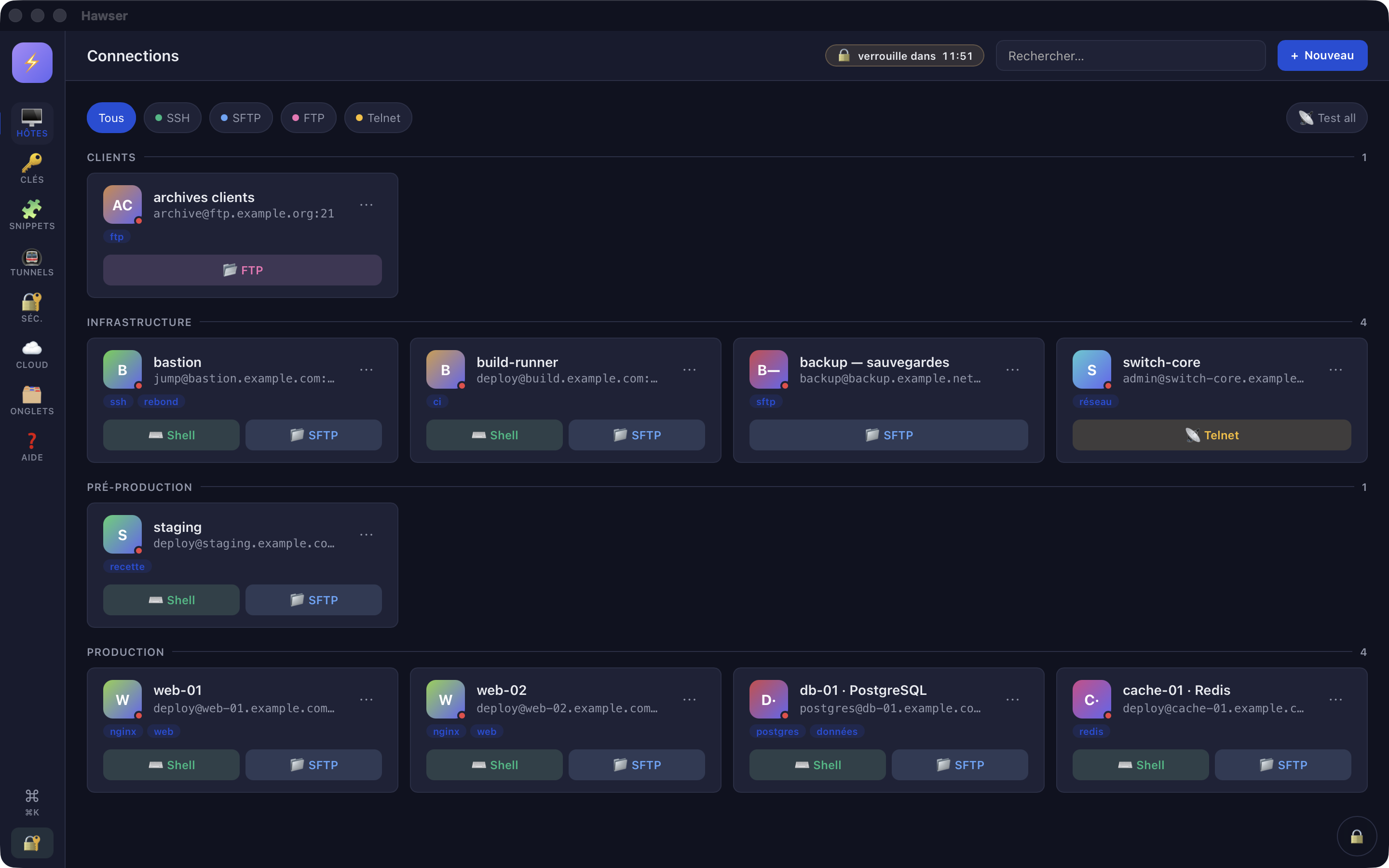
The Hôtes (Hosts) view is Hawser's home view: the 🖥️ icon in the left sidebar, titled "Connections" in the top bar. Two routes lead to the form:
- The "+ Nouveau" button ("+ New" in English), at the top right of the bar.
- The ⌘K palette, then the "New connection" entry.
On an empty vault, the view shows "No hosts yet" and a "+ Add your first host" button that opens the same form.
Choosing the protocol
When you create an entry, a "Choose a protocol" window appears before the form. It offers three cards. Échap (Esc), or a click outside the window, cancels. Once you have chosen, the form title becomes "New connection (SSH / SFTP)", "(FTP)" or "(Telnet)".
| Protocol | What the entry actually allows | Port |
|---|---|---|
| SSH / SFTP | Terminal, file browser, command execution, tunnels, Server / Docker / K8s dashboards. A single entry gives you both the "⌨️ Shell" and "📁 SFTP" buttons on the card. | 22 |
| FTP | File browser only: browsing, upload, download, folder creation, renaming and deletion. Passive mode is enforced. No terminal. | 21 |
| Telnet | Terminal only, in clear text. No file transfer, no start-up snippets. | 23 |
The protocol can still be changed afterwards, with the three radio buttons at the top of the General tab. The window says as much: "You can change this later from the connection settings."
General tab: the fields, in order
The form opens on this tab, with the cursor already in Name.
| Field | What it expects |
|---|---|
| Name | The label shown on the card, in the ⌘K palette and on the session tab. Mandatory. |
| Port | Pre-filled according to the protocol. A whole number between 1 and 65535. |
| Host | DNS name or IP address. Mandatory. |
| User | The remote account. Hidden for Telnet. In FTP, leaving the field empty makes Hawser attempt an anonymous connection. |
| Groupe (Group) | Free text, with autocompletion on the groups already used in the vault. Left empty, the entry lands at the end of the list under the "— Sans groupe —" (No group) header. |
| Tags (séparés par virgule) (Tags, comma-separated) | Shown on the card and taken into account by the search. |
| Path initial SFTP (Initial SFTP path) | The folder the remote panel opens in. Visible for SSH only, default value . |
Changing the protocol resets the port to the default only if the field is empty or still holds a default port (22, 21 or 23). A custom port is kept: after switching from SSH to FTP, check that the port shown really is your FTP server's.
This form's labels do not follow the interface language: they stay in a fixed mix of English and French ("Name", "Groupe", "Path initial SFTP"), even when the sidebar is in French.
Authentication tab: password or key
For an SSH host, a two-position selector offers Password (the default position) or Clé SSH (SSH key). For an FTP host, the tab holds only a "Password FTP" field. For a Telnet host, it is empty.
Password
The password is typed into a masked field and saved encrypted in the .ivault vault, along with the rest of the entry. Nothing is written to the macOS keychain or to a clear-text file: see What is encrypted.
When you reopen the entry, the field has given way to a "🔒 Password saved" chip and a "Change" button. That button opens a small "Change password" window: New password, Confirm, a "🧪 Test" button and an Apply button. Two different entries give the error "Les mots de passe diffèrent" (the passwords differ). Once confirmed, the "Updated (unsaved)" notice is a reminder that the change is only written to the vault after Save on the entry.
SSH key
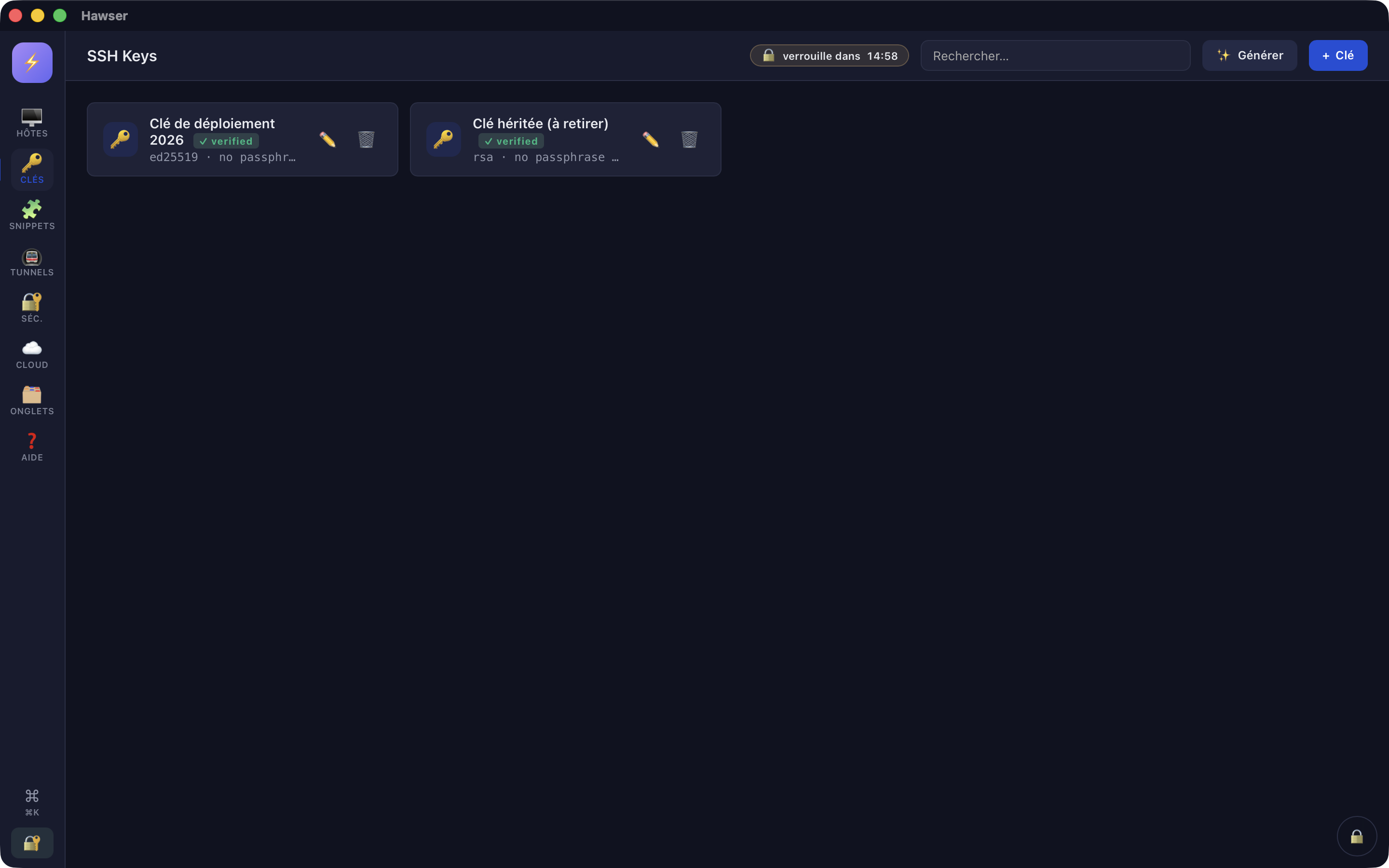
The "Clé SSH" button replaces the password field with the "Saved SSH key" list. This list only holds keys already saved in the vault; the ones that have been validated carry a "✓". The "+ New" button beside it opens the key creation window and automatically selects the newly created key.
The key's passphrase is stored with it in the vault: you are never asked for it again when connecting. Details in Managing SSH keys.
Two messages to know about. "Select an SSH key" blocks saving when SSH key mode is active with no key chosen. "Clé SSH introuvable (vérifie l'host : authType=key sans keyId valide)" (SSH key not found) appears later, when the session starts, if the referenced key has since been deleted from the vault.
What the tab does not do
Hopping through a bastion (jump host)
Advanced tab, first list: "Jump Host (bastion)", set to "— Direct connection —" by default. It only offers the vault's other SSH and SFTP hosts, never the entry being edited. The bastion must therefore exist as an entry in its own right, with its own credentials.
When connecting, Hawser first opens a session to the bastion, opens a direct-tcpip channel from there to the target, then replays the full SSH handshake through that channel. The bastion's fingerprint is checked just like the target's. An active hop is flagged by a ⤴ on the card and on the session tab's bar.
Hop errors are explicit and worth reading to the end: "connect failed: jump host connect timeout" (the bastion is not answering), "connect failed: open direct-tcpip: …" (the bastion refuses to open the channel, often because AllowTcpForwarding is disabled on the server side), "connect failed: target connect timeout" (the channel is open but the target is not answering on SSH), "Jump host introuvable dans le store" (the bastion's entry has been deleted).
Advanced tab: timeouts, reconnection, snippets
The rest of this tab is uneven. Here is what each setting really does, with its default value.
| Setting | Default | Actual effect |
|---|---|---|
| Keep-alive (ms) | 15000 | None. The value is saved and read back, but is not passed to any engine. |
| Ready timeout (ms) | 20000 | Partial. The timeout applied to the connection never drops below 180 s, to give the fingerprint confirmation window time to appear. A value above 180000 ms, on the other hand, is honoured. |
| Keep-alive max | 3 | None. Saved, never used. |
| Reconnexion automatique avec backoff (Automatic reconnection with backoff) | ticked | Active. When an SSH shell closes unexpectedly, the chip switches to "Déconnecté" (Disconnected) then "Reconnexion dans Ns…" (Reconnecting in N s). The delay doubles on every failure (1 s, 2 s, 4 s…) and caps at 20 s. Unticked, the tab simply stays on "Déconnecté". |
| Snippets de démarrage (Start-up snippets) | none | Active. Ticked snippets are injected into the shell 500 ms after it opens, in order, once the host's variables have been interpolated. |
Jump host, the three timeouts and the snippet list are hidden for FTP and Telnet. Start-up snippets only run on an SSH shell session: neither the SFTP tab nor Telnet plays them. See Snippets and inspection.
An unreachable host fails immediately in any case, at the TCP level, well before the 180 s floor comes into play. The engine also applies its own 600 s idle timeout.
Test, then save
At the bottom of the form, to the left of Cancel and Save, the "🧪 Test" button opens a TCP connection to host:port with a 5 s timeout, saving nothing. The result appears beside it: "✓ OK" in green, or "✗" followed by the system error in red.
✗ timeout                                      no answer within 5 s
✗ Connection refused (os error 61)             the port is closed
✗ nodename nor servname provided, or not known host name not resolved
Host required the Host field is emptySave validates the entry, checks the cloud quota if this is a creation on a paired vault, then writes to the encrypted vault synchronously: a write error is visible straight away and the addition is rolled back in memory. The button locks while the write runs. Confirmation: "Host added" or "Host updated".
- "Name and host required" — one of the two mandatory fields is empty.
- "Port must be between 1 and 65535" — port out of range.
- "Select an SSH key" — SSH key mode with no key chosen.
- "no vault open" — the vault locked in the meantime.
- The "⚠ Quota cloud atteint" (Cloud quota reached) window — the vault is paired and the addition would exceed the plan's item limit. See Syncing your vaults.
Edit, duplicate, delete
Everything goes through the "⋯" button at the top right of the card. There is no other route. The menu holds four entries: "✏️ Edit", "📡 Test", "📋 Duplicate", and "🗑️ Delete" in red.
- Edit reopens the form on the entry, straight to the General tab. The protocol selector does not reappear: the protocol is changed with the three radio buttons.
- Duplicate immediately creates a full copy, password and key reference included, with the suffix "(copie)" in the name. No window opens: the copy is saved as it stands, so rename it afterwards with Edit. Confirmation: "Dupliquée" (Duplicated).
- Delete asks for confirmation ("Delete \"<name>\" ?") before writing. If the write to the vault fails, the entry is restored in memory and the error displayed: nothing disappears silently.
The other known gaps in this version are listed in Limitations and troubleshooting.