Opening and locking
Where your vaults live, how to open them, and exactly what happens when Hawser closes them.
Four ways to open a vault
Hawser always starts on the home screen. No vault is opened automatically, even if you only have one. The screen shows three action cards, then the list of recent vaults below.
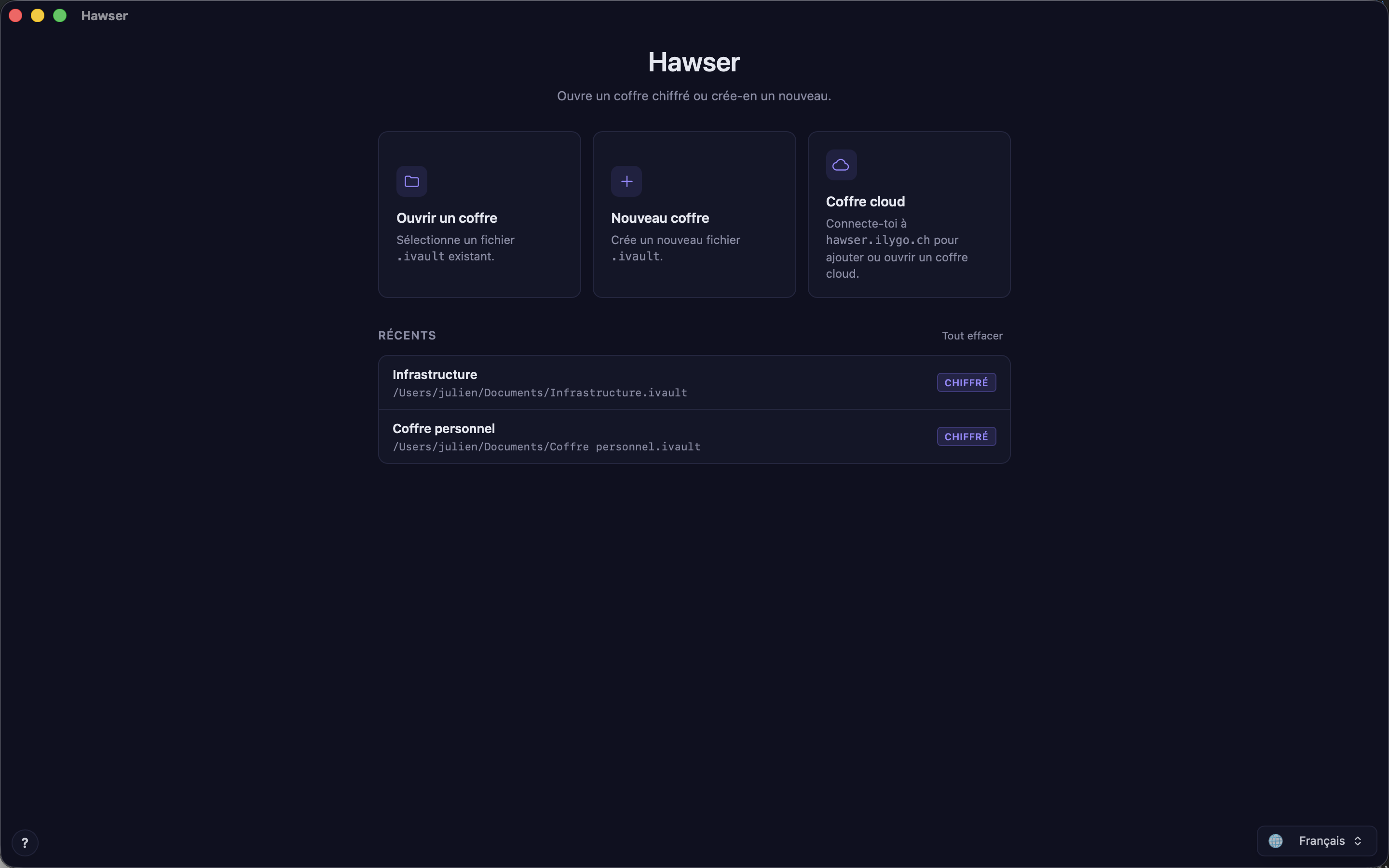
Ouvrir un coffre (Open a vault) also accepts older .outpost files, while Nouveau coffre (New vault) always rewrites the extension to .ivault.- The recents list. Clicking a row starts the open. It is the shortest route day to day.
- The
Ouvrir un coffrecard ("Sélectionne un fichier.ivaultexistant." — select an existing.ivaultfile) opens the macOS file picker, filtered onILYGO vault. That filter accepts both extensions:.ivaultand.outpost. - Double-clicking in the Finder on an
.ivaultor.outpostfile. Both extensions are declared to macOS, andopen coffre.ivaulton the command line works too. - The
Coffres cloud(Cloud vaults) section, which only appears if your account is signed in and the machine is online.
In all four cases, Hawser first inspects the file header without decrypting it, to find out whether it is encrypted, then shows the unlock dialogue.
Unlocking with a password
The dialogue is titled Déverrouiller <nom du coffre> (Unlock <vault name>) and shows the file's full path as its subtitle. The password field takes focus on its own.
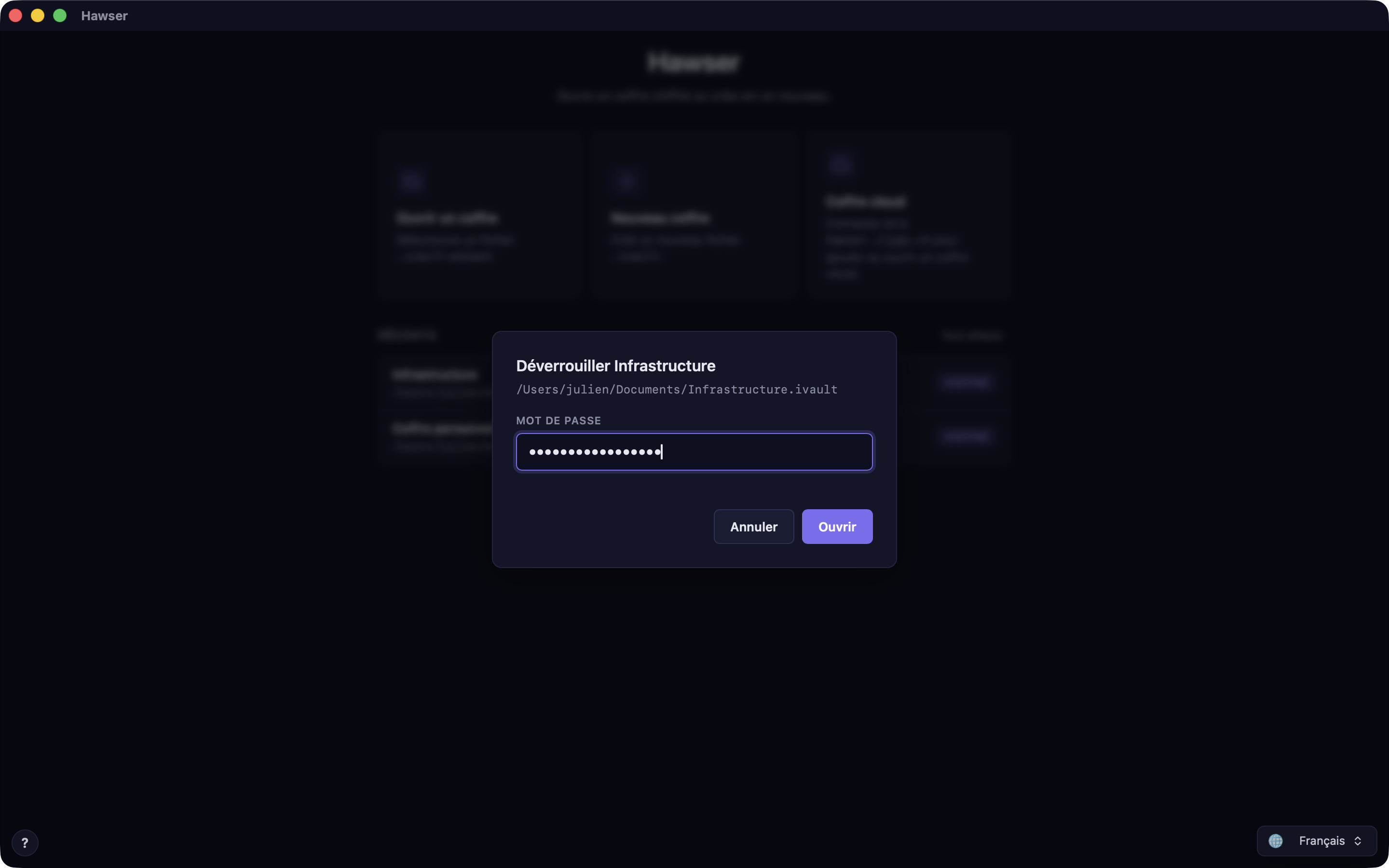
- Type the vault's master password.
- Confirm with
Entrée(Enter) or theOuvrir(Open) button. The button shows aDéverrouillage…counter while decryption runs. - A
Chargement…(Loading…) overlay covers the screen, then the main application loads. The vault moves to the top of the recents.
Échap (Esc) or Annuler (Cancel) close the dialogue without attempting anything. An empty field shows Mot de passe requis (Password required) without calling the engine; a wrong password shows Mauvais mot de passe (Wrong password) in red under the field.
Touch ID
A 👆 Touch ID button appears to the left of Annuler, but only if the vault carries the biometric marker. It then reads the master key from the macOS keychain and opens the vault without a password.
The recents list
The Récents (Recent) section keeps the last 20 vaults opened: the file name without its extension, the full path underneath. Each time it is displayed — when the screen loads, and every time the window regains focus — Hawser re-reads each file's header to refresh its state.
A badge on the right of the row tells you where things stand.
| Badge | What it means |
|---|---|
chiffré (encrypted) | Vault protected by a password. The normal case. |
👆 Touch ID | Added to chiffré on an older .outpost vault marked for biometrics. |
non chiffré (not encrypted) | Older vault created before encryption became mandatory. It opens on a single click, with no dialogue. |
introuvable (not found) | The file is no longer at the remembered path. The row is greyed out and no longer responds to clicks. |
Removing an entry
Right-clicking a row is the only way: it asks Retirer "<nom>" de la liste ? (Remove "<name>" from the list?), then removes the entry. The vault file on disk is never touched. The row's tooltip is a reminder: Cliquez pour ouvrir · clic droit pour retirer (click to open, right-click to remove), and Fichier introuvable — clic droit pour retirer (file not found, right-click to remove) on a greyed-out row.
The Tout effacer (Clear all) button at the head of the section empties the whole history. No file is deleted, but no confirmation is asked for, unlike removing a single row. The empty list then shows Aucun fichier récent. Crée-en un ou ouvre un coffre existant. (No recent files. Create one or open an existing vault.)
Opening a cloud vault
If your account is signed in and the machine is online, a Coffres cloud (Cloud vaults) section slots in between the cards and the recents. Each row shows the name preceded by ☁, the start of the identifier, the size and the account address.
- Click the remote vault's row.
- Type the
Mot de passe maître du coffre(vault master password) in the smallOuvrir le coffre cloud(Open cloud vault) dialogue. - Hawser downloads the encrypted vault to an internal location, pairs the device, then unlocks. The button shows
Ouverture…during the operation.
The downloaded file does not appear in the recents list and its location is never shown. Pairing is covered in detail in Syncing your vaults.
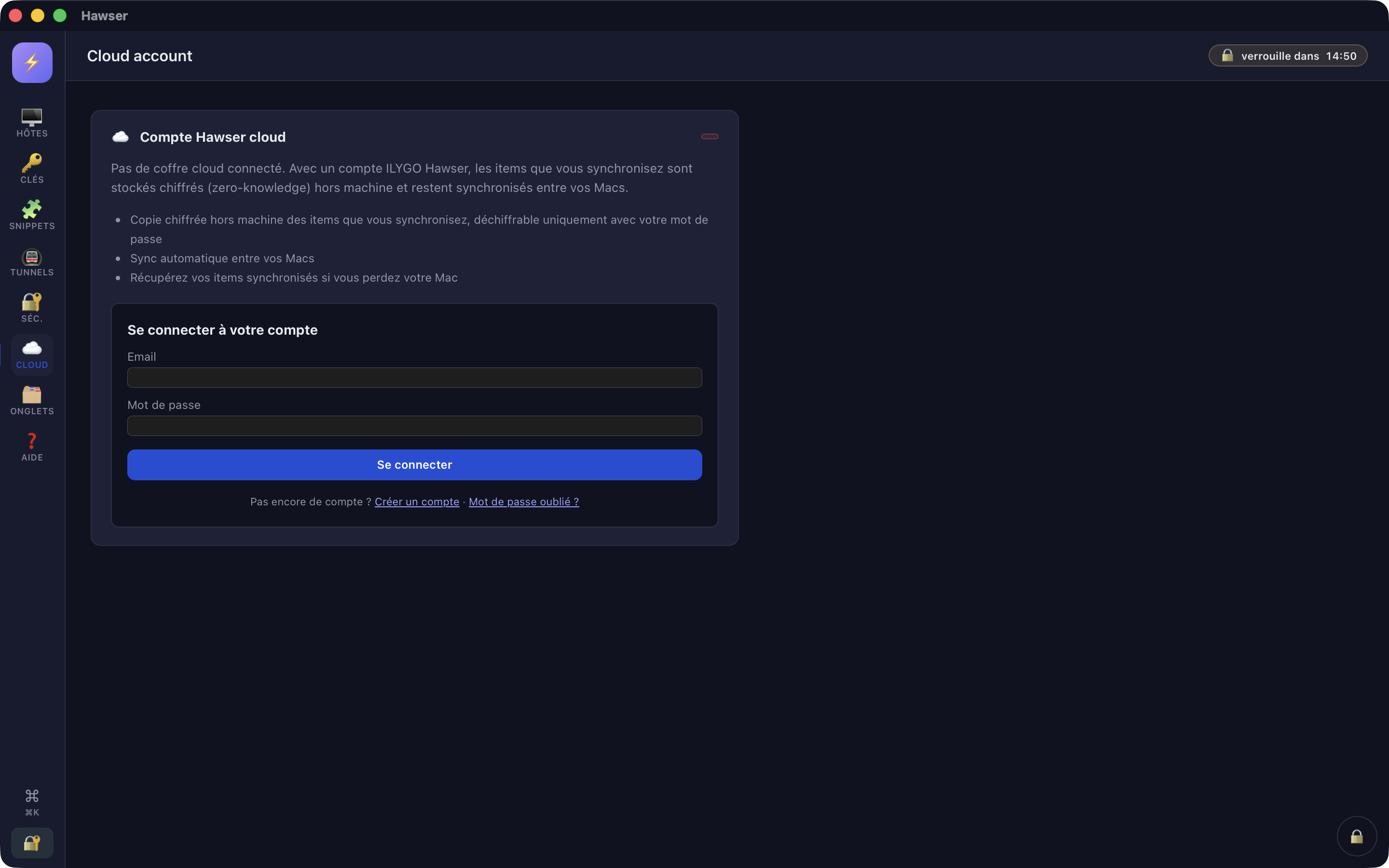
Coffre cloud card is the only way in.Locking manually
Two gestures close the vault and take you back to the home screen.
- The round 🔒 button in the dock at the bottom right of the window, tooltip
Fermer le coffre(Close the vault). - The ⌘L shortcut, which works everywhere, including when the focus is in a text field.
In both cases the master key, the engine password and the session data are wiped from memory, then the page is reloaded on the home screen — which also clears the decrypted copy the interface was holding in memory.
Auto-lock
The setting is in the 🔐 Séc. (Security) view of the left rail, section ⏱️ Auto-lock, drop-down list Lock after … d'inactivité. Six values: Off (jamais), 1, 5, 15 and 30 minutes, and 1 hour. The default is 15 minutes. The change takes effect immediately and is confirmed by an Auto-lock after 15 min or Auto-lock disabled message.
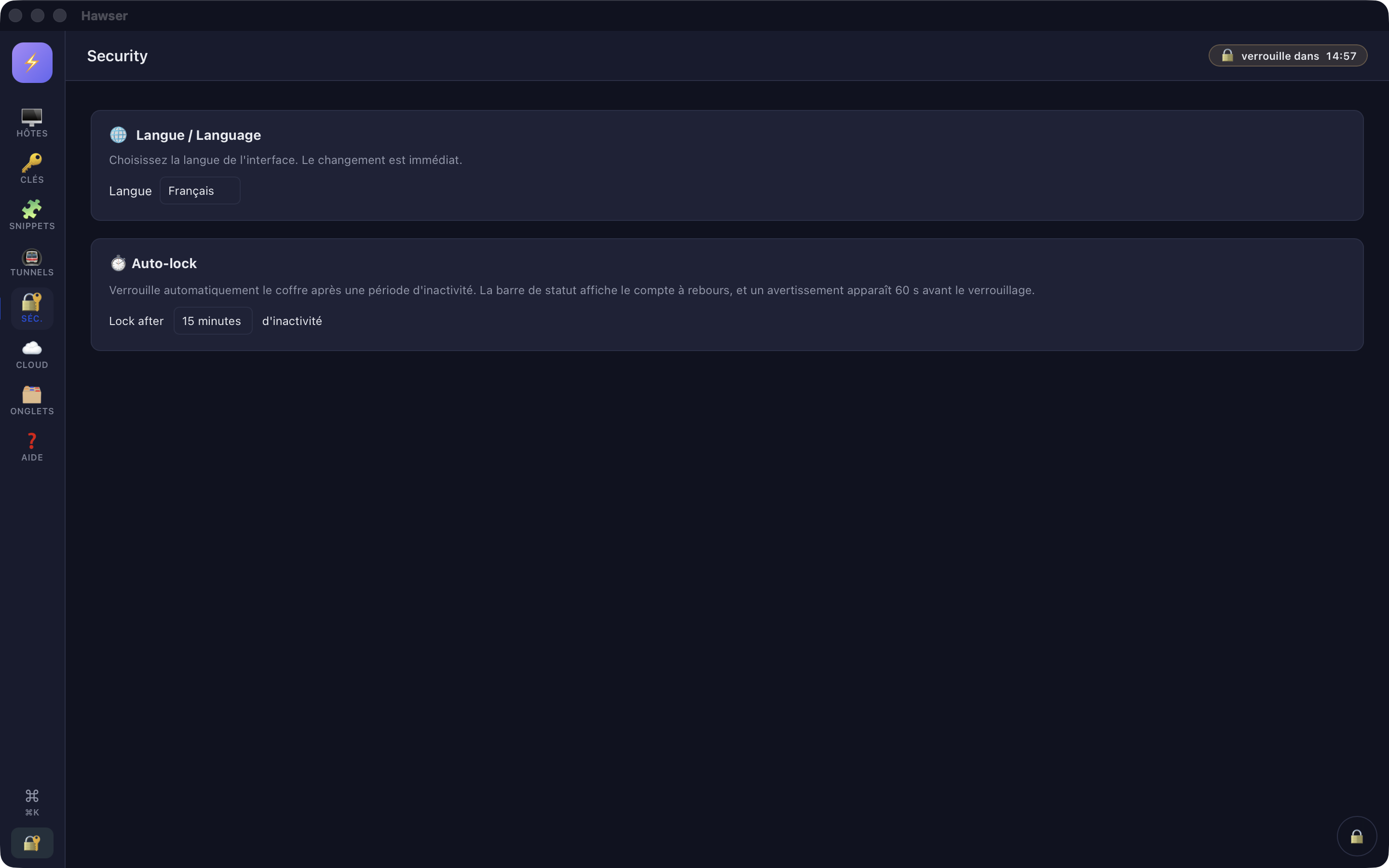
A 🔒 Auto-lock dans MM:SS chip appears in the top bar, between the view title and the search field. It turns red below 60 seconds. At the same moment, a yellow panel appears at the bottom left: 🔒 Verrouillage auto dans Ns (auto-lock in N seconds), with two buttons.
Rester(Stay — "Reporter le verrouillage", postpone the lock): the inactivity counter goes back to zero and the full delay starts again.Verrouiller(Lock — "Verrouiller le coffre maintenant", lock the vault now): closes the vault immediately.
Two behavioural details: shortening the delay never locks instantly, because the inactivity counter is reset at the same time; and the warning panel is polled every 15 seconds, so the number shown jumps in steps of 15.
Older .outpost vaults
Hawser never trusts the extension. It reads the first 8 bytes of the file: ILYV1 marks the modern unified format, OPV1 the older Outpost format. An old vault renamed to .ivault therefore opens correctly, and a file that is not a vault produces a clear message instead of an obscure failure.
An .outpost vault opens and reads normally, encrypted or not. Any write, however, is refused: vault is in legacy .outpost format and is read-only — please run the migration to .ivault first.
If a file named vault.outpost is in the application folder and no .ivault has been written yet, the home screen offers a Format unifié .ivault disponible (unified .ivault format available) dialogue at load time. It asks for the same master password (migration does not change it), converts the vault, then renames the original to vault.outpost.bak.<horodatage> — the original is not deleted. The buttons are Migrer maintenant (Migrate now), Plus tard (Later) and Ne plus demander (Do not ask again).
Errors when opening
The first four messages come from format detection. They appear prefixed with Impossible d'ouvrir ce fichier: (Cannot open this file) when you go through the file picker, and in an Impossible d'ouvrir ce coffre : (Cannot open this vault) alert followed by the path when the file arrives from a Finder double-click.
| Message | What happened | What you can do |
|---|---|---|
fichier trop court pour être un coffre : <chemin> (file too short to be a vault) | The file is empty or under 8 bytes. | Check that the copy or the download ran to completion. |
format non reconnu : <chemin> n'est pas un coffre Hawser (unrecognised format: not a Hawser vault) | The first bytes are neither ILYV1 nor OPV1. | It is not a vault, whatever its extension. Look for the right file. |
coffre introuvable : <chemin> (vault not found) | The file disappeared between selection and reading. | Locate it in the Finder, then reopen it through the Ouvrir un coffre card. |
lecture impossible de <chemin> : <erreur système> (cannot read the file) | Permission denied, or the volume is disconnected. | Mount the disk again, then reselect the file through the Ouvrir un coffre card. |
Mauvais mot de passe (Wrong password) | Decryption failed verification. | Watch out for the keyboard layout and Caps Lock. Nobody can recover this password. |
vault payload integrity check failed (file is corrupted or was tampered with) | The content has been altered since the last write. | See the automatic backup below. |
vault format version <n> is not supported (this build understands up to v<max>) | The vault was written by a newer version of Hawser. | Update Hawser on this machine. |
Hawser copies the previous encrypted version of the vault before every save, into vault-backups/<path fingerprint>/<timestamp>.ivault in the application folder. The 5 most recent are kept.
For what is actually encrypted in the file and what is not, see What is encrypted. To create your first vault, see Creating your vault.