Working in the terminal
Tabs, zones, copy and paste, keystroke broadcasting and recording: what Hawser's terminal does, and what it does not.
The Onglets view
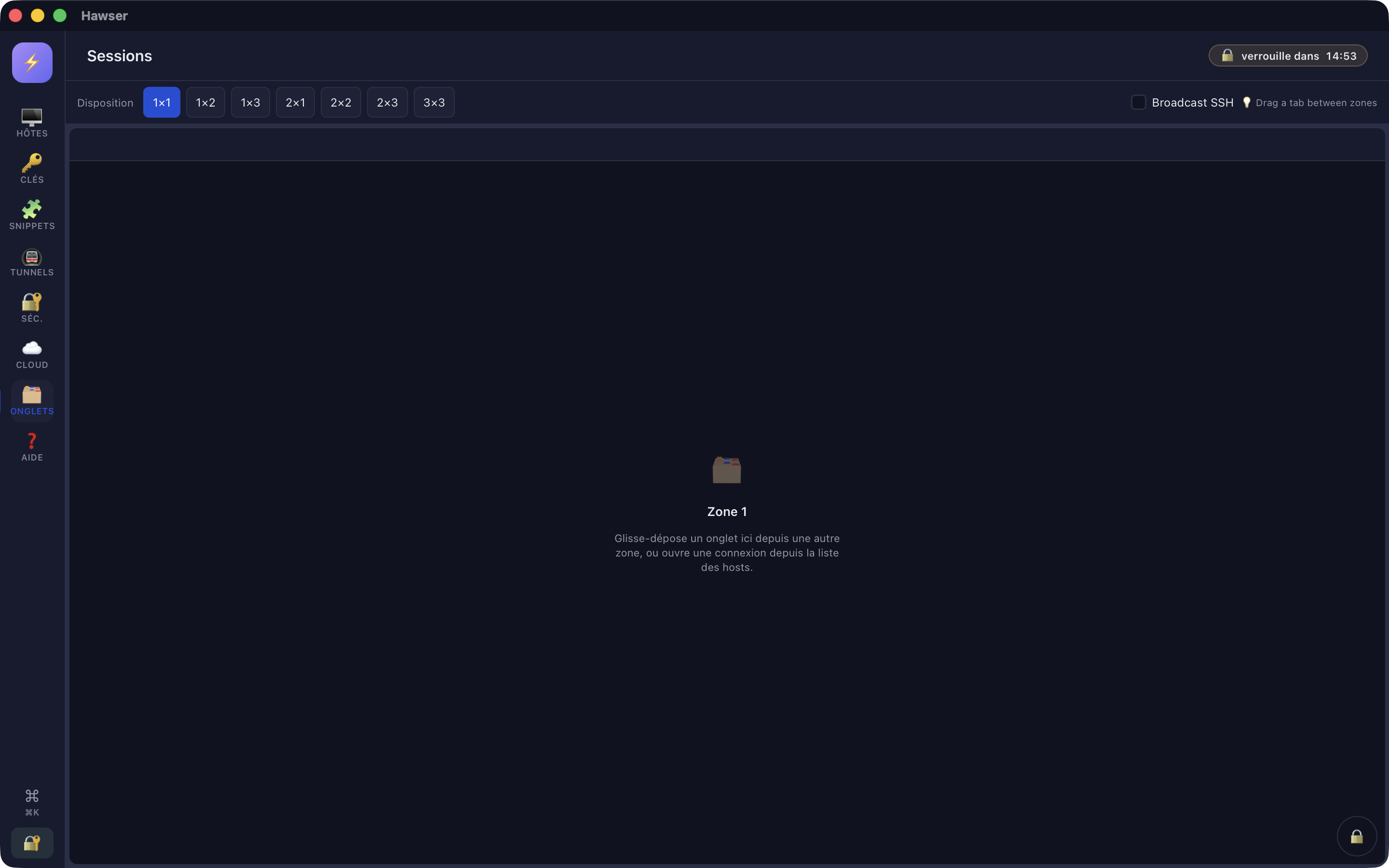
Hawser's workbench is the Onglets (Tabs) view: left-hand rail, 🗂️ icon. A numbered badge appears on that icon as soon as a tab is open, and disappears when none is left. The title shown at the top of the view is Sessions: that is an untranslated string, it really is the same screen.
A tab holds one of three things: an SSH terminal, a Telnet terminal, or an SFTP/FTP file browser (see Transferring files). All three live in the same system of tabs and zones, with the same drag and drop.
A connected SSH tab carries a toolbar: user@host:port (followed by ⤴ if the connection goes through a bastion), the status dot, then six buttons — 🔄 reconnect, ⏺️ record, 📊 Server, 🐳 Docker, ☸️ K8s, 🧩 snippets.
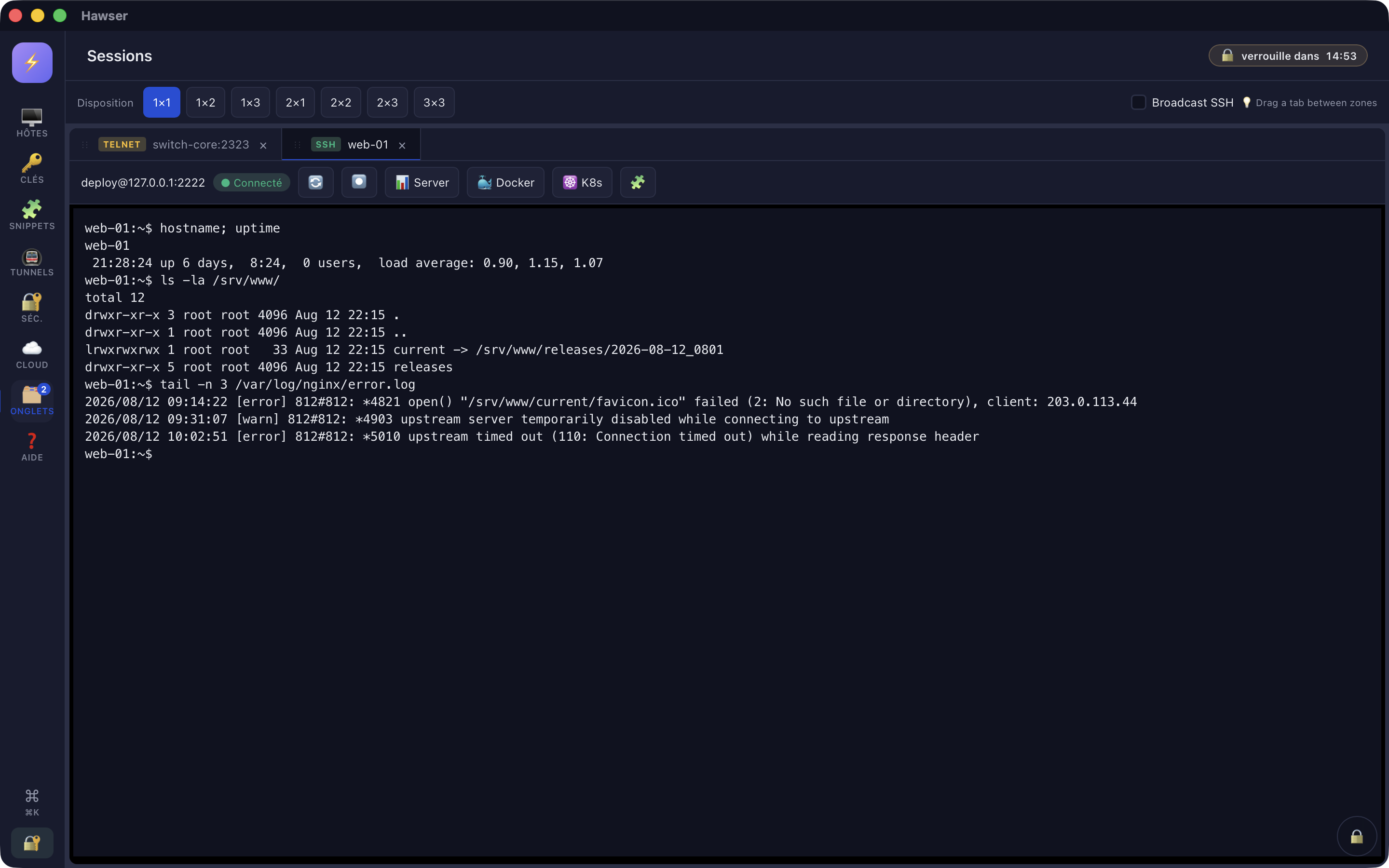
web-01: the tab carries the entry's name, not the address. The bar above opens the Server, Docker and K8s dashboards without leaving the terminal.Splitting the screen into zones
The top bar starts with the label Disposition (Layout) followed by seven buttons. Each one rebuilds the grid; the active button stays highlighted.
| Button | Number of zones |
|---|---|
| 1×1 | 1 |
| 1×2 | 2 side by side |
| 1×3 | 3 side by side |
| 2×1 | 2 stacked |
| 2×2 | 4 |
| 2×3 | 6 |
| 3×3 | 9 |
Each zone has its own tab bar and its own active tab. Activating a tab in zone 2 does not hide the one in zone 1: several terminals stay visible at once. Changing layout loses no tab — going from 3×3 back to 1×1, the tabs whose zone disappears are moved into the first one.
Any session opened from the Hôtes view lands in the first zone, at the top left. Moving it is then up to you.
- Choose a layout with at least two zones in the top bar.
- Grab the tab by its
⋮⋮handle (or by any point on the tab). - Drag it: the zone you hover over is outlined with a dotted border.
- Drop it. The tab and its contents move across, become active in the receiving zone, and the terminal resizes itself.
To reorder tabs within a single bar, drop the tab onto another tab: left half to insert before, right half to insert after. A bronze marker shows the insertion point. The same operation works from one zone to another, moving and positioning in a single gesture.
The × button closes a tab immediately, without confirmation, even if a command is still running in it.
What you get back at the next launch
Hawser remembers your grid layout and restores it at startup. The tabs, however, are not reopened: this is a deliberate choice, so that you decide explicitly what you reconnect to. So you get your 2×2 grid back, empty.
Copying, pasting, scrolling
Hawser installs no custom menu: the menu bar is the one macOS provides by default. The Édition (Edit) menu gives you Undo ⌘Z, Redo ⇧⌘Z, Cut ⌘X, Copy ⌘C, Paste ⌘V, Select All ⌘A.
- Copy: select with the mouse, then ⌘C.
- Paste: ⌘V. A multi-line paste goes out in a single send, and uses “bracketed paste” mode if the remote shell has enabled it.
- Right-click: on macOS it selects the word under the pointer (it does not open a menu).
History and scrolling
An SSH tab keeps 5,000 lines of history. ⇧ + Page↑ scrolls up one page, ⇧ + Page↓ scrolls back down; on a laptop keyboard with no numeric keypad, that is Fn + ⇧ + ↑ and Fn + ⇧ + ↓. The Home and End keys do not scroll: they send their sequence to the shell.
What clears your screen
Every connection — the first opening, the 🔄 button, or an automatic reconnection — starts by resetting the terminal. The displayed history is lost and the remote shell is new: the current directory and the environment variables of the previous session are not carried over.
Broadcasting your keystrokes to several sessions
To the right of the Disposition bar sits a Broadcast SSH tick box. While it is ticked, every character typed in an SSH terminal is also sent to every other connected SSH tab, across all zones.
Recording a session
The ⏺️ button in an SSH tab's toolbar starts the capture. It turns into ⏹️ Stop on a red background and an Enregistrement démarré (recording started) message appears briefly. A second click stops the capture and seals the file.
What is captured is the server's output (standard and error streams), not your keystrokes. The format is asciinema v2, with a header carrying the terminal size and TERM: xterm-256color, and a relative timestamp for each block of output.
Files are written here:
~/Library/Application Support/ch.ilygo.hawser/recordings/<uuid>.castDuring the capture, the file carries the .cast.part extension and 0600 permissions. When you stop, it is sealed. If a vault is open at that moment, the final .cast is encrypted with AES-256-GCM, using a subkey derived from your master key, behind an OPCAST1 header. With no vault open, it stays a plain .cast, readable with asciinema play.
Possible messages when you click ⏺️: Ouvre la session d'abord (open the session first — the session or the shell is not established yet), Recording: already recording this shell (a capture is already running on this shell), Recording natif indisponible (native recording unavailable — the page was opened outside the native application), and Recording: <message> for any other engine error.
Search, font and theme
The appearance of SSH terminals is fixed in the code: SF Mono font (falling back to Menlo, then Consolas), size 13, dark background, amber cursor, and a full 16-colour ANSI palette — ls --color, htop, vim and coloured prompts display correctly. The pseudo-terminal requested from the server is an xterm-256color. Telnet tabs use Menlo, in amber on black.
The shortcuts that are really wired
The list is short, and the built-in help advertises more than exist. Here is what works.
| Shortcut | Effect | From a terminal |
|---|---|---|
| ⌘K | Opens the command palette | Yes — the keystroke is not passed to the shell |
| ⌘L | Closes the vault, without confirmation | Yes |
| ⌘C / ⌘V | Copy the selection / paste | Yes |
| ⇧ + Page↑ / Page↓ | Scroll one page through the history | Yes, and that is its only use |
| Esc | Closes the frontmost modal | No: the key is consumed by the terminal |
| ⌘W | Closes the window, and therefore every session | Yes |
| ⌘Q | Quits the application | Yes |
Three shortcuts advertised by the application do not keep their promise. ⌘N (“nouvel hôte”, new host) is captured but runs nothing: use the + New button or ⌘K → “New connection”, see Adding a server. ⌘F does not exist. ⌘? depends on the keyboard layout and does not open on a QWERTY keyboard.