Opening an SSH session
From the Shell button to the remote prompt: fingerprint checks, bastion hops, timeouts, reconnection and the exact error messages.
From the Shell button to the prompt
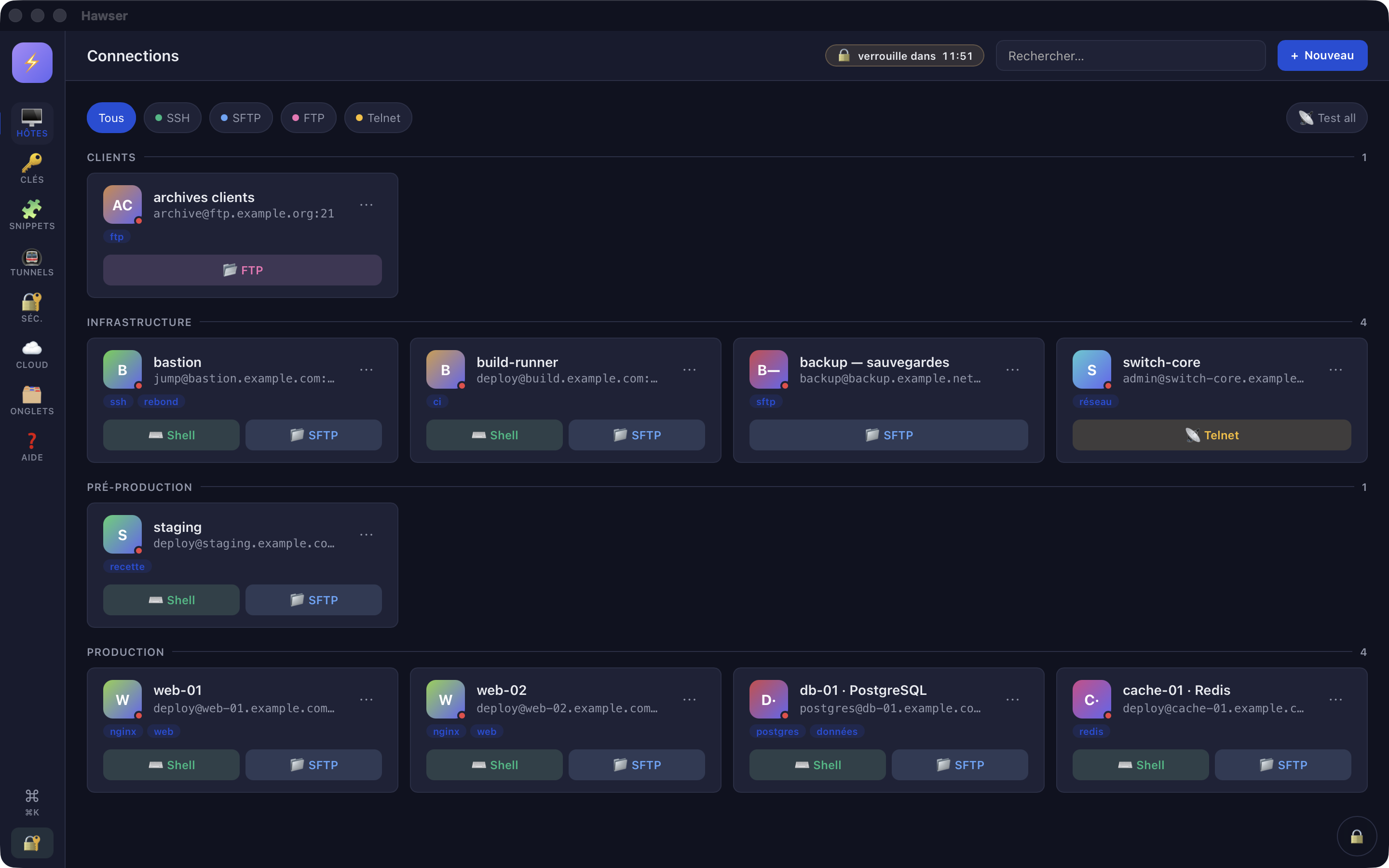
The Hôtes (Hosts) view — the 🖥️ icon in the left-hand rail — is active at startup. An SSH entry there carries two buttons: ⌨️ Shell and 📁 SFTP. Both open the same connection — same host, same user, same authentication, same bastion. You do not need a second entry to transfer files.
- In the Hôtes view, find the server's card. The line under the name shows
user@host:port, followed by⤴if a hop is configured. - Click
⌨️ Shell. Hawser switches to the Sessions view (🗂️ icon) and opens a tab in zone 1. - The terminal writes
Connecting to user@host:port...in grey and the dot in the tab bar readsConnecting…. - On the very first contact with this server, the connection pauses and the fingerprint window appears (next section).
- The dot turns green and reads
● Connecté(connected). The server's prompt appears.
Second route: ⌘K, then the entry prefixed HÔTE (subtitle user@host), confirmed with Enter. Same effect as the card's main button.
There is no de-duplication: two clicks on ⌨️ Shell open two tabs and two separate SSH sessions to the same server.
If startup snippets are ticked in the entry's Advanced tab, they are injected into the shell 500 ms after it opens, in order, each followed by a line break. They are replayed on every reconnection. See Snippets and inspection.
Cette fois seulement (Just this once) does not record it: the question comes back next time.The host fingerprint on first contact
Hawser keeps its own list of trusted fingerprints, inside the encrypted vault. It never reads your Mac's ~/.ssh/known_hosts, and never writes to it. A server already known to your command-line ssh is therefore treated here as a stranger.
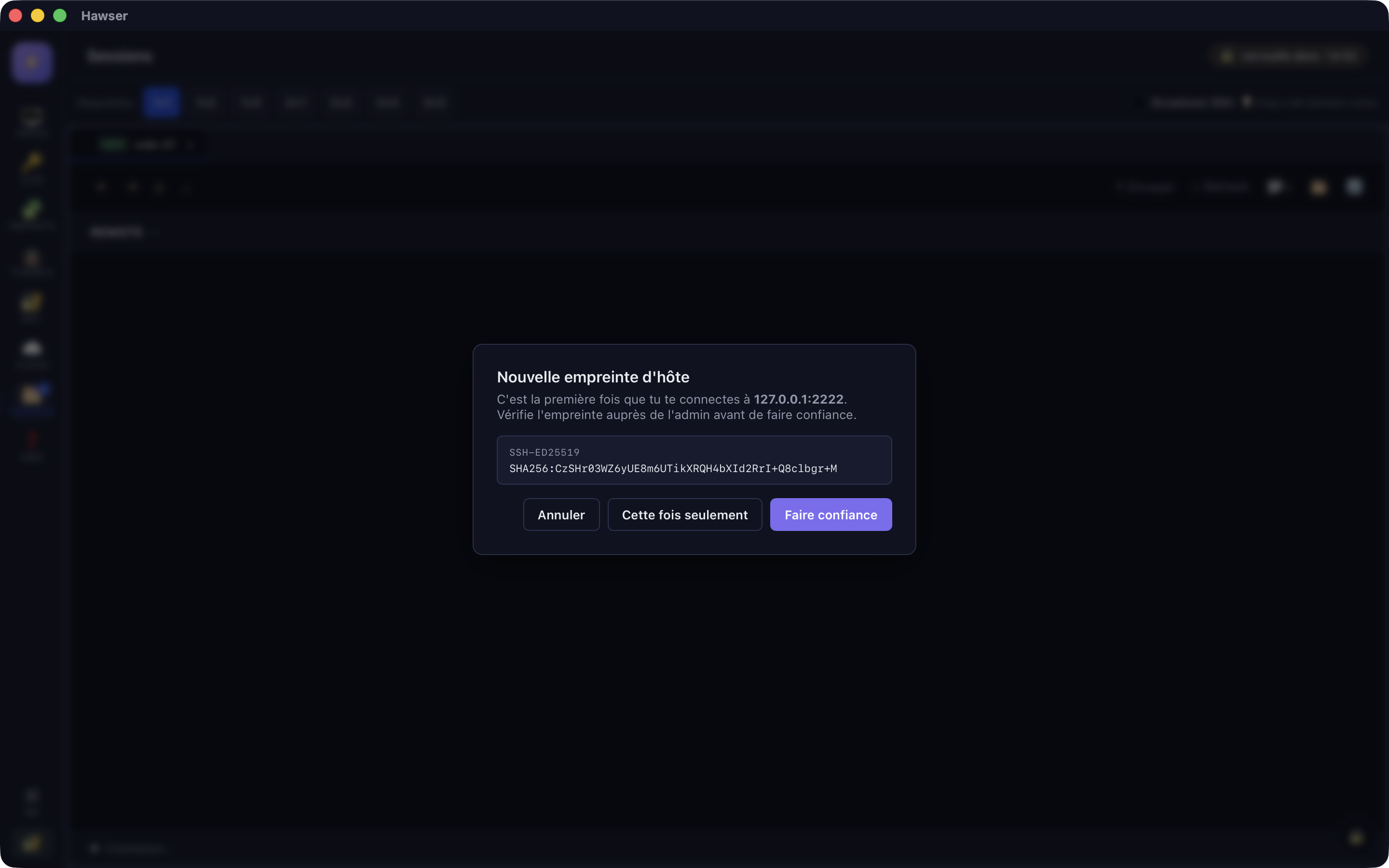
On the first connection to a host — whether you clicked ⌨️ Shell or 📁 SFTP — the handshake is suspended and this window appears:
Nouvelle empreinte d'hôte

C'est la première fois que tu te connectes à web01.example.com:22.
Vérifie l'empreinte auprès de l'admin avant de faire confiance.

SSH-ED25519
SHA256:kx9J2v…

[ Annuler ] [ Cette fois seulement ] [ Faire confiance ]| Button | Effect |
|---|---|
Annuler (Cancel) | The connection is abandoned. The terminal shows [Erreur] Connexion SSH refusée : connect failed: Unknown server key. |
Cette fois seulement (Just this once) | The connection continues and nothing is written to the vault. The question comes back the next time you open it. |
Faire confiance (Trust) | The connection continues and the fingerprint is saved in the vault, with its algorithm and the date. |
The fingerprint is computed exactly as ssh-keygen -lf does on the server, which allows a character-by-character comparison. On the server:
ssh-keygen -lf /etc/ssh/ssh_host_ed25519_key.pubWith no answer for 120 seconds, the window cancels itself and the connection is abandoned. It is to leave room for that wait that the overall connection timeout never drops below 180 seconds (see below).
When the fingerprint has changed
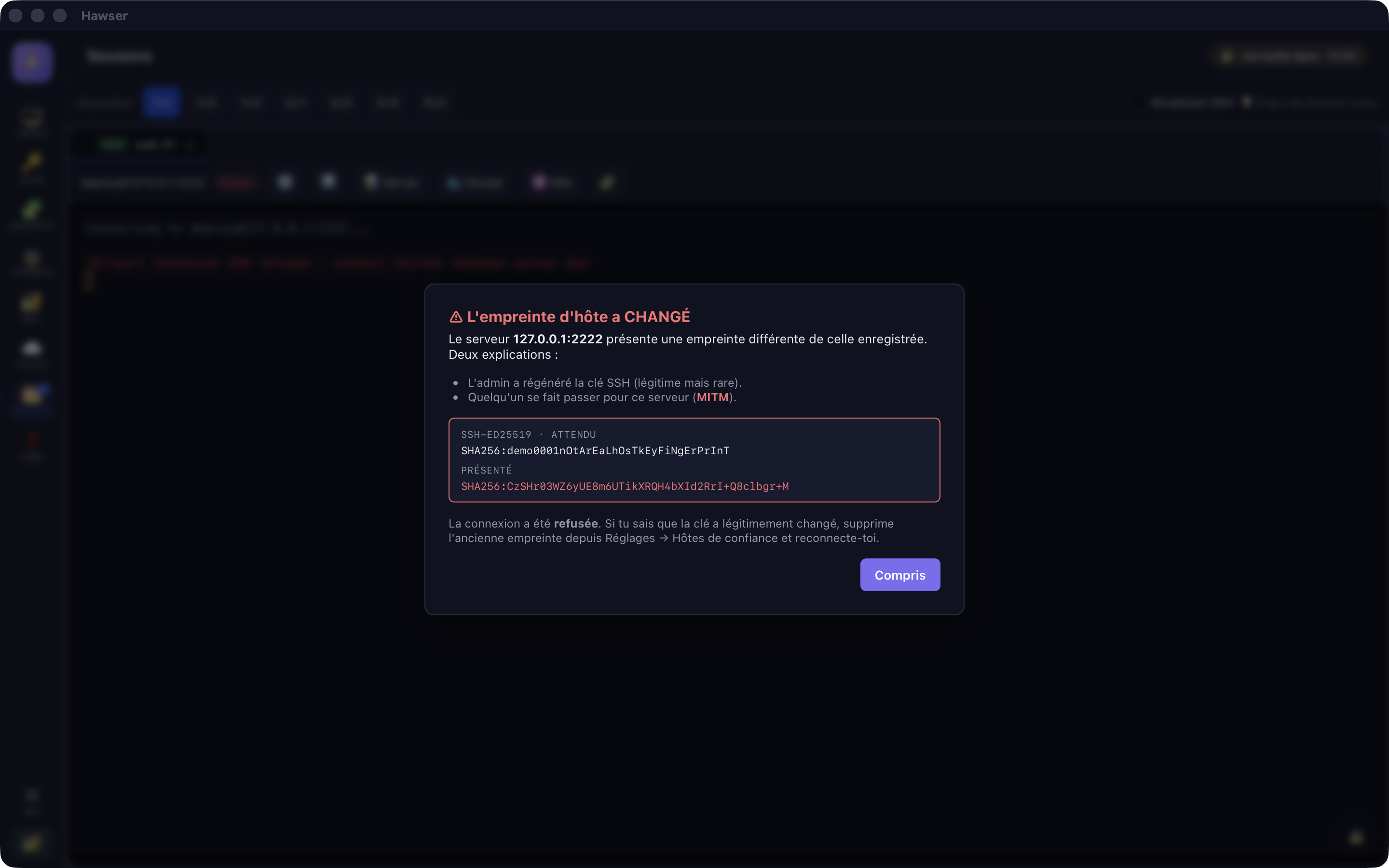
If a known host presents a fingerprint different from the one on record, the engine refuses the connection before any authentication, and shows “⚠ L'empreinte d'hôte a CHANGÉ” (the host fingerprint has CHANGED). Your password was not sent.
The window gives the two possible explanations: the administrator regenerated the server's key (legitimate, but rare), or someone is impersonating that server. You cannot settle it from Hawser.
Clearing the block after a legitimate change
The window's text says: “supprime l'ancienne empreinte depuis Réglages → Hôtes de confiance et reconnecte-toi.” (delete the old fingerprint from Settings → Trusted hosts and reconnect).
- Obtain the new fingerprint from the administrator, through a channel independent of the server concerned (telephone, physical console, configuration management).
- Compare it with the value shown in red under “présenté”. If they differ, stop here and report the incident.
- If they match: open the host's entry (
⋯→✏️ Edit) and change theHostorPortfield so that it designates the same server differently — its IP address instead of its domain name, for example. Thehost:portpair then becomes unknown to the vault. - Save and run
⌨️ Shellagain: the “Nouvelle empreinte d'hôte” (new host fingerprint) window comes back. Check the fingerprint shown one last time, then choose “Faire confiance”.
The old record stays in the vault: it will block any connection made under the old host:port pair again. The only way to remove it for good is to start from a new vault. See Limits and troubleshooting.
Going through a bastion (hop)
The host's entry → Advanced tab → Jump Host (bastion) list, set to — Direct connection — by default. The list only offers the other SSH and SFTP hosts in the vault — so the bastion has to be saved as an entry in its own right, with its own credentials.
On connection, Hawser first opens a session to the bastion with the credentials from the bastion's entry, opens a direct-tcpip channel to the target from there, then replays the full SSH handshake through that channel. The bastion only sees end-to-end encrypted traffic pass through: it does not decrypt your session.
- The bastion's fingerprint is checked like the target's, with the same trust window. On the first hop, you therefore answer twice.
- Chaining is recursive: a bastion can itself have a bastion, up to 4 levels.
- The host's card and the tab bar show
⤴when a hop is active.
Timeouts, drops and reconnection
Three fields in the Advanced tab deal with timeouts. Only one has any effect.
| Field | Default | Actual effect |
|---|---|---|
Ready timeout (ms) | 20000 | Converted to seconds, then forced up to a floor of 180 s. Going below 180000 changes nothing; raising it beyond that works. |
Keep-alive (ms) | 15000 | Saved in the vault, never passed to the engine. No effect. |
Keep-alive max | 3 | Saved in the vault, never passed to the engine. No effect. |
The 180 s floor is deliberate: the timeout also covers the wait for your decision on the host fingerprint, which can last 120 s. An unreachable host still fails immediately, at the TCP level, without waiting 180 seconds.
Automatic reconnection
The Reconnexion automatique avec backoff (automatic reconnection with backoff) tick box in the Advanced tab is ticked by default. When the shell closes without you asking, the dot turns to Déconnecté (disconnected), then to Reconnexion dans Ns… (reconnecting in N s), and a new attempt starts after 1 s, then 2 s, 4 s, 8 s, 16 s and 20 s at most. The counter resets as soon as a connection succeeds.
If that attempt fails at the connection stage, the dot stays on Erreur (error): Hawser stops retrying on its own. The 🔄 button in the tab bar restarts the whole sequence.
The vault locks while you work
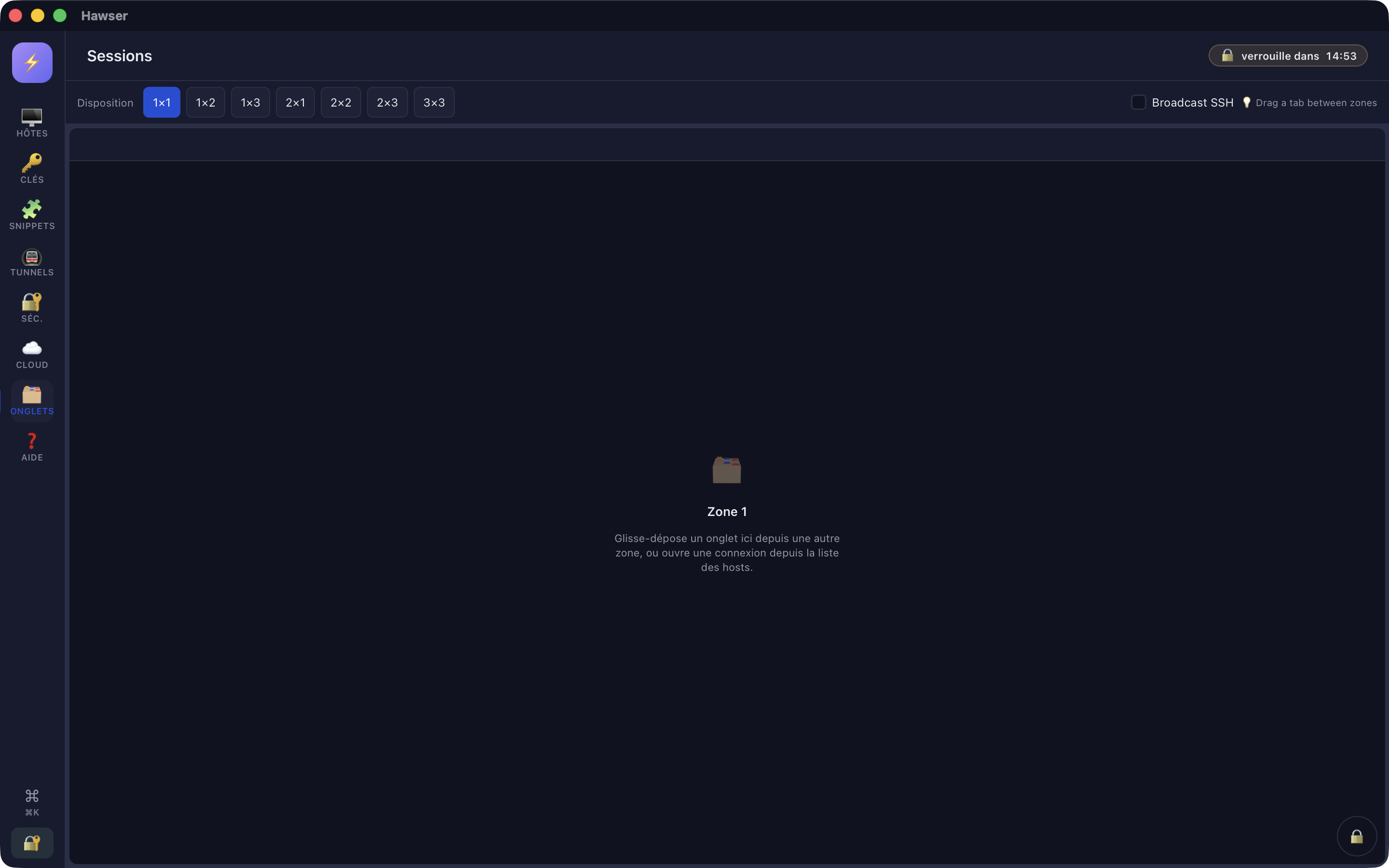
Auto-lock is set to 15 minutes by default (🔐 Séc. view → ⏱️ Auto-lock). The events counted as activity are typing, mouse movement, clicks and the window regaining focus.
A yellow panel appears at the bottom left for the last 60 seconds, with two buttons: Rester (Stay) pushes the deadline back, Verrouiller (Lock) closes the vault immediately. Details of the mechanisms in Opening and locking.
Diagnosis: the exact messages
Session errors are written in red in the terminal, prefixed [Erreur], repeated in a notification, and the dot turns to Erreur.
| Message | Cause | What to do |
|---|---|---|
Connexion SSH refusée : authentication failed | The server rejected the password or the key. | Check User in the General tab and the secret in the Authentication tab. A key also has to be authorised on the server. |
Connexion SSH refusée : connect failed: Unknown server key | You answered “Annuler” to the fingerprint window, or the fingerprint has changed — the red window then appears at the same time. | Try again and answer “Faire confiance” after checking. If it is a fingerprint change, follow the procedure above. |
Connexion SSH refusée : connect failed: connect timeout | No SSH handshake within the timeout (180 s minimum). | A firewall often lets the TCP connection open, then cuts it. Compare with the entry's 🧪 Test button. |
Connexion SSH refusée : connect failed: … | TCP refusal or host name not resolved (for example Connection refused (os error 61)). | Check Host and Port. |
Clé SSH introuvable (vérifie l'host : authType=key sans keyId valide) | The entry is in key mode, but the key it references is no longer in the vault. | Entry → Authentication tab → select a key again in Saved SSH key. |
Jump host introuvable dans le store | The bastion referenced by the entry has been deleted from the vault. | Entry → Advanced tab → Jump Host (bastion). |
jump host chain too deep (limit 4) | More than four hops in a row. | Shorten the chain of bastions. |
Connexion SSH refusée : connect failed: jump host: … or jump host connect timeout | The bastion itself does not answer, or refuses the authentication. | Open a session on the bastion alone first, to isolate the problem. |
Connexion SSH refusée : connect failed: open direct-tcpip: … | The bastion refuses to open the channel to the target. | On the bastion, this is almost always AllowTcpForwarding no in sshd_config. |
Connexion SSH refusée : connect failed: target connect timeout or target: … | The channel is open, but the target does not answer SSH from the bastion. | Check from the bastion that the target is reachable on its port. |
Ouverture du shell refusée : … | The session is authenticated but the server refuses to allocate a terminal. | An account with no shell, a ForceCommand, or a session quota reached on the server. |
Tauri natif indisponible (recharge l'app) | The native bridge had not loaded yet when you clicked. | Restart Hawser. |
[shell exited with code N] (in grey) | Not an error: the remote shell ended normally, after an exit for example. | 🔄 to open a shell again. |
The test tools, and what they prove
🧪 Test at the foot of the entry and 📡 Test all in the filter bar open a TCP connection to host:port — a 5-second timeout for the first, 3 for the second. They check neither the authentication, nor the key, nor the fingerprint. A ✓ OK followed by an authentication failed is perfectly consistent.
What this version does not do
- Manage trusted fingerprints. No screen to list them, forget one, or import a
~/.ssh/known_hosts. The list is built host by host, on first contact, and is never cleaned up. - Forward the SSH agent, or authenticate through the macOS agent from the interface.
- Adjust the keep-alive, or the 10-minute idle timeout.
- Reopen tabs at the next launch: only the grid layout is restored.
- Search the terminal history:
⌘Fis bound to nothing, whatever the built-in help says. - Change the terminal font, size or theme: those values are fixed.
What comes next: Working in the terminal, Transferring files, Tunnels and ports.