What is encrypted
What the .ivault file encrypts, what it leaves in the clear, and what your master password does not protect.
What goes in the vault, what stays out
Hawser keeps your data in a single file, the .ivault. Everything you enter in the application goes into it. A few technical items live outside it, and it is worth knowing which ones before you put a vault in a shared folder.
| Data | Where it lives |
|---|---|
| Servers: name, host, port, user, protocol | In the .ivault, encrypted |
| Login passwords entered on a host record | In the .ivault, encrypted |
| Private SSH keys (PEM) and their passphrases | In the .ivault, encrypted |
| Snippets, tunnels, groups, terminal themes | In the .ivault, encrypted |
| Accepted host fingerprints | In the .ivault, encrypted |
| Audit log (no screen displays it in this version) | In the .ivault, encrypted and signed with a sub-key derived from the master key |
| Settings, including the auto-lock delay | In the .ivault, encrypted — plus a local copy in the clear, see below |
File header: ILYV1 signature, version, identifier, Argon2id parameters, salt, nonce | In the clear at the start of the .ivault. No content, only what is needed to attempt an unlock |
| Counters: number of hosts, keys, fingerprints, secrets and snippets | In the clear at the end of the .ivault |
Full paths and dates of the last 20 vaults opened (recent.json) | In the clear, application folder |
<your vault>.ivault.journal: operation names, timestamps, identifiers | In the clear, right next to the vault |
| Language, auto-lock delay, open session tabs (including server names) | In the clear, local window preferences |
| Crash reports | In the clear, crashes/ folder inside the application folder |
Cloud server address and session token (sync-config.json) | In the clear, application folder, 600 permissions |
| Automatic vault backups | Encrypted, vault-backups/ folder |
The header and the trailing counters can be read without a password. The header carries the parameters needed for decryption; the counters feed the cloud sync quota, which reads them without opening the vault.
How the encryption works
Your master password is never stored. It is used to derive a 32-byte key with Argon2id: 64 MiB of memory, 3 passes, parallelism 1. That profile takes roughly 250 ms on an Apple Silicon Mac. The quarter of a second is deliberate: it makes testing billions of passwords very expensive for anyone who has stolen the file.
That key encrypts the whole document with AES-256-GCM. A random salt is drawn when the vault is created, and a random nonce on every save. GCM also produces an authentication tag: if a single byte of the file is altered, the vault fails to open rather than returning questionable data.
vault payload integrity check failed (file is corrupted or was tampered with)
vault file is corrupted or not an ILYGO vault
Mauvais mot de passe
Hawser does not trust the file extension: it reads the first eight bytes. ILYV1 marks the current format, OPV1 the older .outpost format. A file renamed to .ivault that is not a vault is rejected with « format non reconnu » (unrecognised format). The vault is written with 600 permissions: readable by your macOS account only.
The companion file
Next to coffre.ivault, Hawser keeps a coffre.ivault.journal. One JSON line per change: operation name, timestamp, identifier of the item concerned. No secrets, no server names, no passwords. It is cleared after every successful save. Its purpose is to reveal, after a crash, whether changes had gone unwritten.
What the master password protects
The master password protects a file at rest. That is a great deal, and it is all.
- Anyone who copies your
.ivaultto a USB stick gets nothing from it. - Anyone who gets hold of an automatic backup gets nothing either: backups are encrypted with the same key.
- The ILYGO sync server cannot open it.
What it does not protect
- The open session. An unlocked vault can be read by anyone with access to the Mac. That is what auto-lock is for, in the next section.
- Network traffic. SSH and SFTP encrypt the connection. FTP and Telnet do not.
- The files you download. They are written as they are into the destination folder, outside the vault. See Transferring files.
- The macOS clipboard, which is not Hawser's to control.
Locking: automatic and manual
The delay is set in the left rail, 🔐 Séc. icon (Security), section ⏱️ Auto-lock, list « Lock after … d'inactivité ». Six values: Off (never), 1, 5, 15, 30 minutes and 1 hour. The default is 15 minutes. The change takes effect immediately, confirmed by a message such as « Auto-lock after 15 min ».
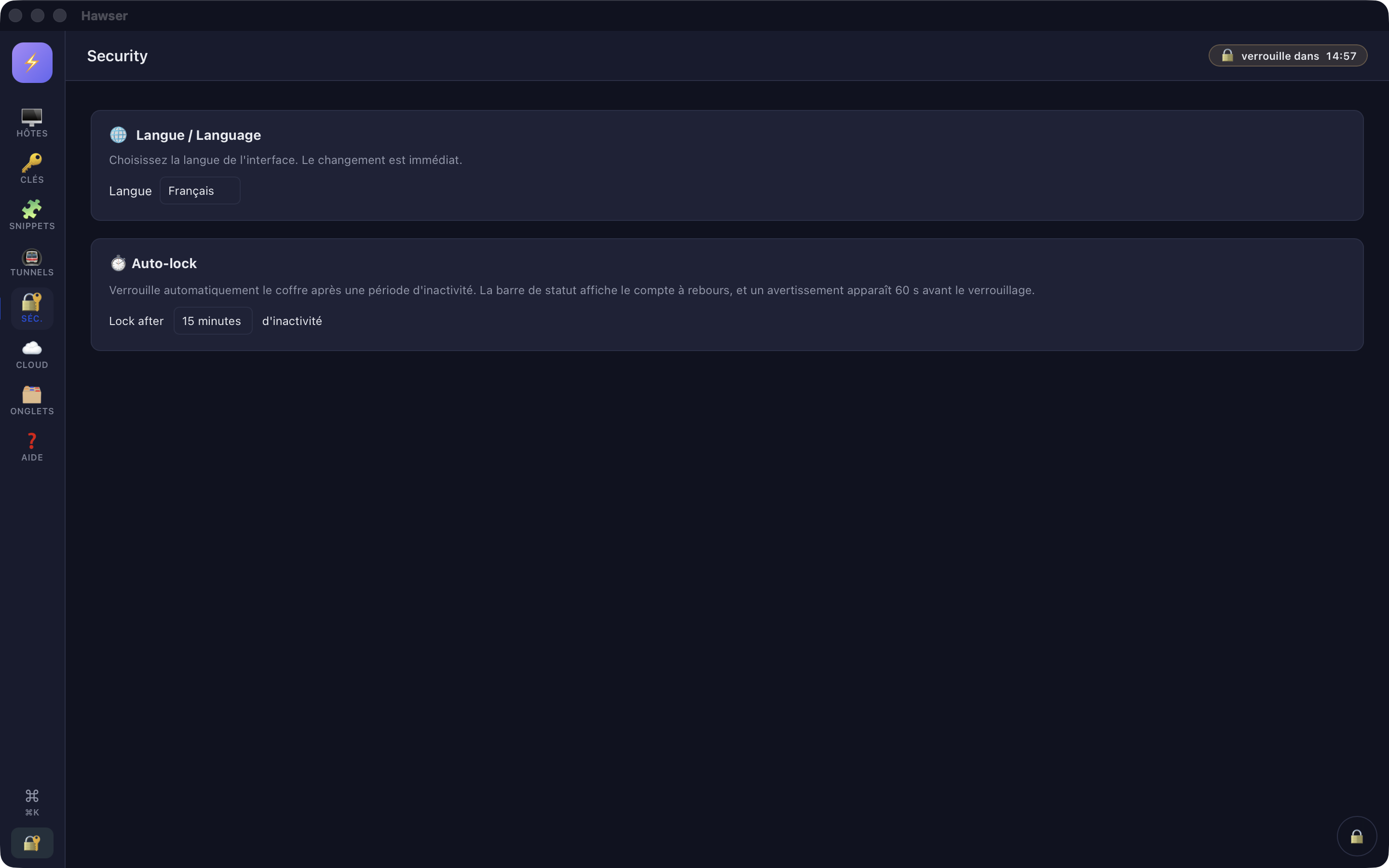
A background task checks for inactivity every 5 seconds. A countdown badge appears at the top of the window, to the left of the search field, and turns red below 60 seconds. At the same moment a yellow panel appears at the bottom left with two buttons: Rester (Stay), which restarts a full delay, and Verrouiller (Lock), which closes the vault straight away.
The following count as activity: a key press, a mouse movement, a click, a touch, and the window regaining focus.
The delay is a per-machine setting. It is stored in the vault, but the computer's local preference is pushed over it at load time. If you open the same vault on a second Mac, it will start again at 15 minutes. See Opening and locking.
Host fingerprints
On the first SSH or SFTP connection to a server, Hawser interrupts the handshake and shows the Nouvelle empreinte d'hôte (New host fingerprint) modal: the key algorithm and its fingerprint in OpenSSH SHA256:… form, in a monospaced font. That is exactly the format ssh-keygen produces, which allows a character-by-character comparison.
# on the server, to compare
ssh-keygen -lf /etc/ssh/ssh_host_ed25519_key.pub- Faire confiance (Trust) — the connection proceeds and the fingerprint is stored in the vault, with the algorithm and the date.
- Cette fois seulement (Just this once) — the connection proceeds, nothing is written, and the question will come back.
- Annuler (Cancel) — the connection is refused.
With no answer for 120 seconds, the decision counts as Annuler and the connection is refused. Fingerprints are keyed by lowercase host:port: the same server reached by IP address and then by domain name produces two separate entries, and the question is asked twice.
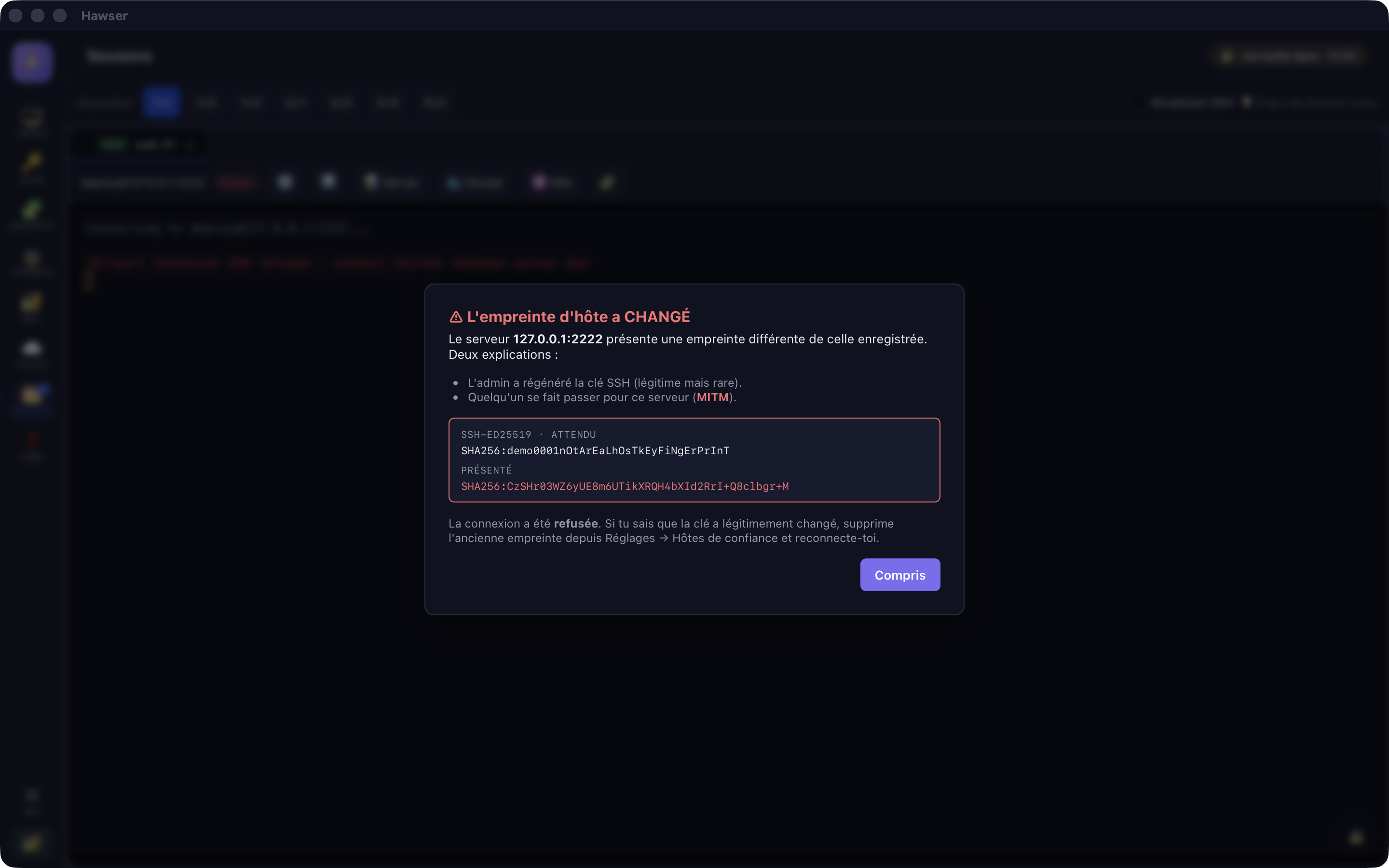
If the fingerprint of an already-known server has changed, the red ⚠ L'empreinte d'hôte a CHANGÉ (the host fingerprint has CHANGED) modal shows both fingerprints, the expected one and the one presented. The connection is refused, with no way to override. A single button: « Compris » (understood).
Touch ID
The 👆 Touch ID button exists on the unlock modal, and a badge of the same name can appear in the list of recent vaults. Both are shown only if the vault carries a biometric marker.
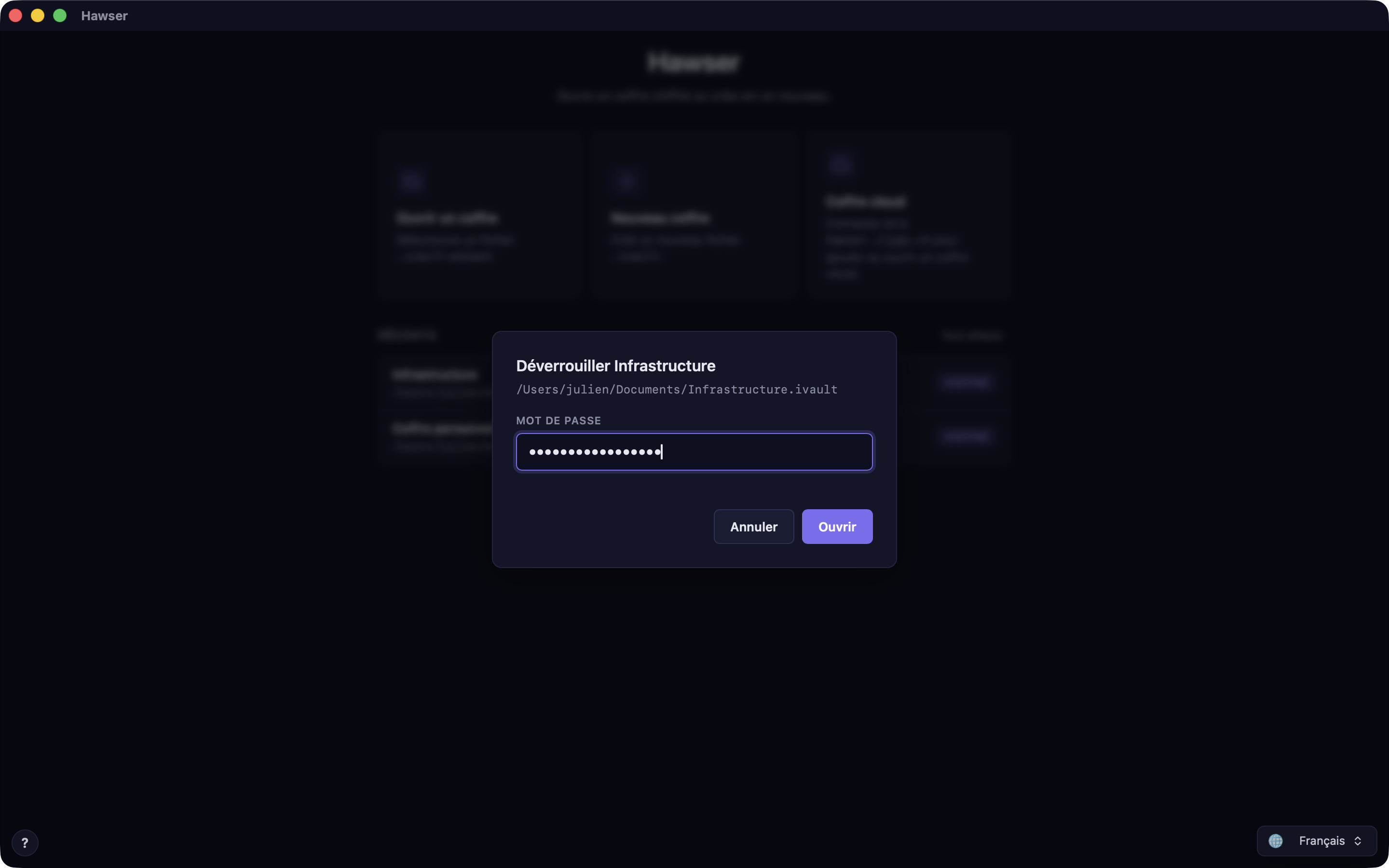
For the record, on vaults that do support it, what is stored in the macOS Keychain is the 32-byte key — never the password, never the vault. The item is bound to the current set of enrolled fingerprints and is available only on that machine, while it is unlocked. It is neither synchronised to the iCloud Keychain nor included in backups, and it is invalidated as soon as a new fingerprint is enrolled in macOS.
In any case, Touch ID would change nothing about the file's encryption. It would replace typing the password, not the password itself.
Automatic backups and the clipboard
Before every save, Hawser copies the previous encrypted version of the vault into a backup folder. The five most recent are kept, older ones deleted. Sorting uses the timestamp contained in the file name, not the file system date — that is more robust against a third-party sync service that alters dates.
~/Library/Containers/ch.ilygo.hawser/Data/Library/Application Support/
  ch.ilygo.hawser/vault-backups/<path hash>/<timestamp>.ivault
The folder sits deliberately outside the vault's own folder, so it survives a sync service that corrupts the file in place. The sub-folder name is a hash of the path, not the path itself: it does not disclose your folder structure. Nothing is copied on the very first save, when the file does not yet exist. A backup that fails never interrupts the save.
The clipboard
Hawser never puts a secret on the clipboard. There is no "copy password" or "copy public key" button. The clipboard is used for exactly two things: copying the path of a recording, and as a fallback when an external link cannot be opened.
What ILYGO can see
Without cloud sync, nothing leaves your Mac. There is no telemetry, and crash reports stay local: the panel that flags them at launch says so itself, « Hawser a planté lors des précédentes sessions. Les rapports sont stockés localement (aucun envoi automatique). » (Hawser crashed during previous sessions. Reports are stored locally, nothing is sent automatically.)
With sync enabled, what goes to the server is the .ivault file as it stands, that is, ciphertext. The master key never leaves the machine: it is neither sent nor derivable server-side.
What the server knows nonetheless:
- the email address of your account;
- the name you give the cloud vault, its size and its update dates;
- the counters sent with each upload: number of hosts, keys, host fingerprints, secrets, TOTP codes and snippets. They serve the quota.
The cloud session token is written to sync-config.json, in the clear, in the application folder, with 600 permissions. It expires after a few days. It is not your master password: it grants no access to the contents of a vault.
If you lose the master password
Your data is lost. Plainly: there is no way to recover it, not for you and not for ILYGO.
The creation modal already says so, word for word: « ⚠ Important. Si tu oublies ce mot de passe, personne (ni toi, ni Hawser, ni Apple) ne pourra récupérer tes données. » (if you forget this password, nobody — not you, not Hawser, not Apple — will be able to recover your data).
- There is no security question, no recovery code for the vault, no reset.
- The automatic backups are encrypted with the same key: they are useless without the password.
- The cloud vault is the same thing, stored elsewhere. The server cannot open it either.
At creation, Hawser accepts either of two profiles: a password of at least 12 characters mixing at least 3 categories among lower case, upper case, digits and symbols; or a passphrase of at least 4 words of 3 characters or more. There is no maximum length.