Syncing your vaults
An ILYGO Hawser account is optional. It stores an encrypted copy of your vault off the machine, and lets you open that vault on a second Mac.
An account is not required
Hawser works entirely without a cloud account. You create an .ivault vault on your disk, you put your hosts and keys in it, and nothing leaves the machine. See Creating your vault.
The account brings two things, and only two: an encrypted copy of your vault kept off your Mac, and the ability to open that same vault on another machine with your master password.
The server address is fixed: https://hawser.ilygo.ch. It is written into the local configuration automatically on your first sign-in attempt. There is nothing for you to enter.
Creating an account from the app
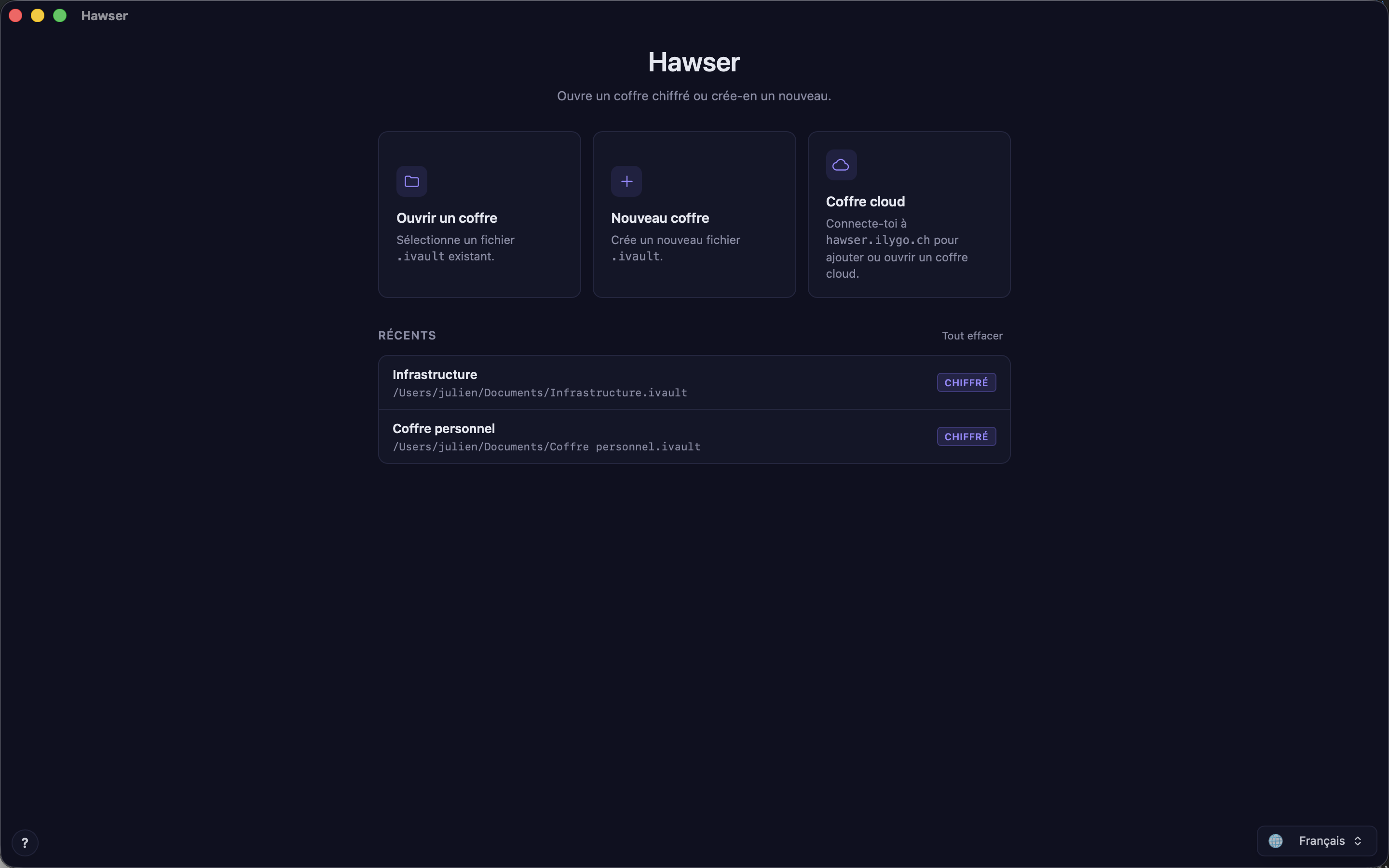
Everything starts from the home screen, card Coffre cloud (Cloud vault) — the third in the row, subtitled Connecte-toi à hawser.ilygo.ch pour ajouter ou ouvrir un coffre cloud. There is no keyboard shortcut.
- Click the
Coffre cloudcard. The authentication modal opens. - Enter your email address and an account password.
- Click
Créer un compte(Create an account). - Open your mailbox and click the verification link.
- Return to Hawser and this time click
Se connecter(Sign in).
Step 3 always ends with an error message, and that is normal: after registration the application moves straight on to a sign-in, which the server refuses until the address is confirmed. You then read Confirmez d'abord votre adresse e-mail — un lien vous a été envoyé à la création du compte. (confirm your email address first; a link was sent when the account was created). This is not a failure, it is half of the journey.
A Renvoyer l'e-mail de vérification (Resend the verification email) button appears below the form at that precise moment, and only then. It confirms with E-mail de vérification envoyé. Cliquez sur le lien, puis connectez-vous.
Other possible messages
Un compte existe déjà pour cette adresse. Connectez-vous plutôt.(an account already exists for this address; sign in instead)Les inscriptions sont fermées pour le moment. Réessayez plus tard.(registrations are closed for now; try again later)Trop de tentatives. Réessayez dans <n> s.(too many attempts; try again in <n> s)Impossible de joindre le serveur Hawser Cloud. Vérifiez votre connexion et réessayez.(the Hawser Cloud server cannot be reached; check your connection and try again)
Signing in and the second factor
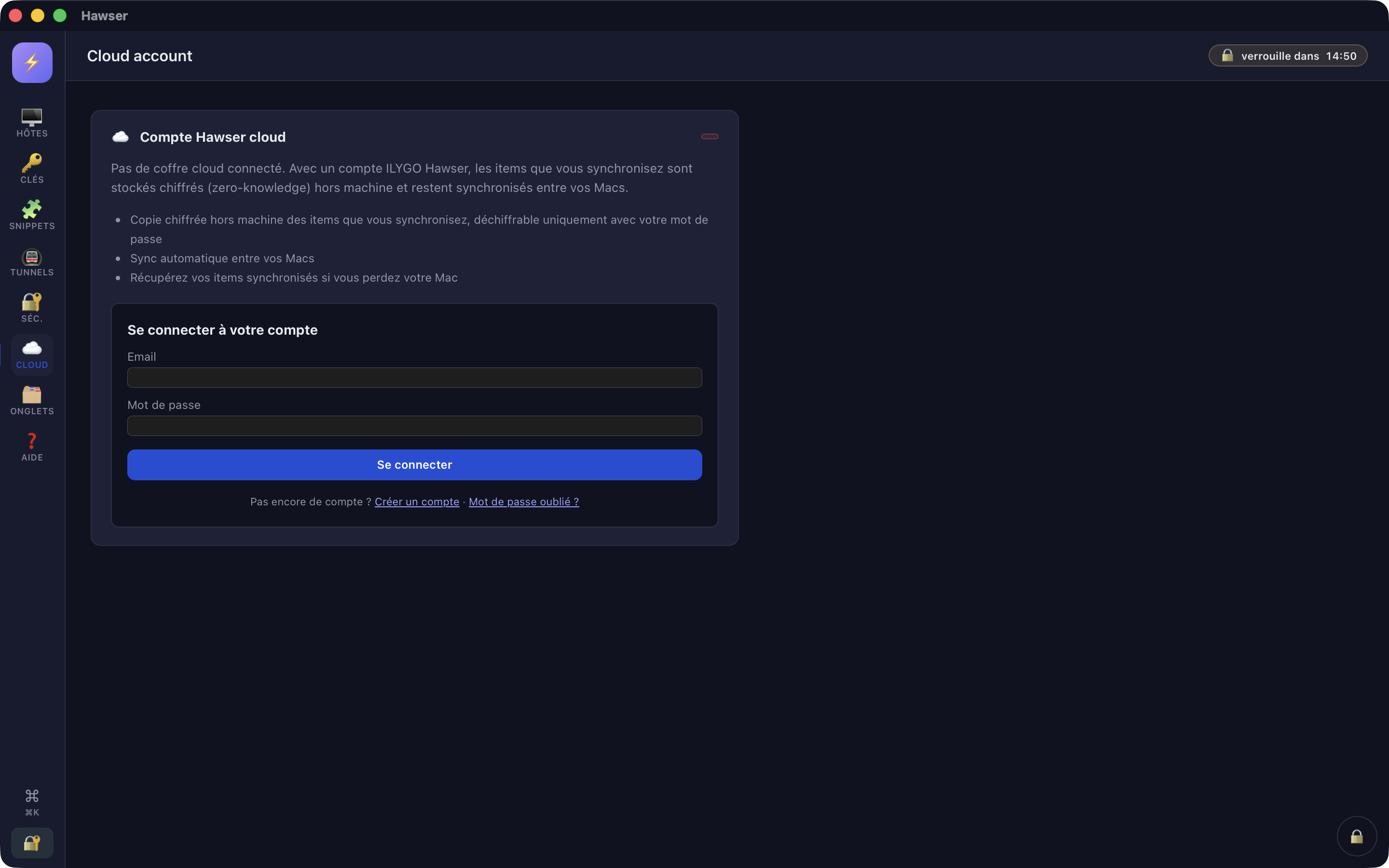
Two places lead to the sign-in form: the home screen (Coffre cloud card) and, once a vault is open, the left rail, ☁️ icon, view Compte Hawser cloud (Hawser cloud account). The Enter key submits from either field.
The session lasts seven days. When it expires, the home screen shows ⏱ Session cloud expirée. Reconnecte-toi via la card « Coffre cloud » ci-dessus. (your cloud session has expired; sign in again from the Coffre cloud card above) and the stale token is purged.
Two-factor authentication
If 2FA is enabled on the account, the screen moves on its own to a Code step after the password. The field accepts either a six-digit code or a recovery code in XXXX-XXXX-XXXX form; a recovery code is consumed when used. You have five minutes: beyond that, the application returns you to the password step with Cette tentative de connexion a expiré. Saisissez à nouveau votre mot de passe. (this sign-in attempt has expired; enter your password again).
A rejected code gives Code invalide. Vérifiez votre application d'authentification, ou utilisez un code de récupération. (invalid code; check your authenticator app, or use a recovery code).
Creating a cloud vault
Once signed in, a Coffres cloud (Cloud vaults) section appears on the home screen, with two buttons in its header: + Nouveau (New) and Se déconnecter (Sign out). While it is empty it shows Aucun coffre cloud — clique « Coffre cloud » pour en créer un.
- Click
+ Nouveau. - Fill in
Nom du coffre cloud(cloud vault name). - Enter the
Mot de passe maître (chiffre le coffre, ne quitte jamais cet appareil), then theConfirmation. - Click
Créer le coffre(Create the vault). Hawser switches to the main window, with the vault open.
The file is filed automatically in ~/Library/Application Support/ch.ilygo.hawser/cloud-vaults/, named after the remote identifier. You neither choose it nor need to know it — but you will see it appear in the Récents (Recent) list on the home screen, under a UUID name and with its technical path. That is normal.
From then on, every automatic save of the vault triggers a background upload: the encrypted file goes as it stands, along with the public counters. There is nothing to click, and success is silent — no badge, no last-upload timestamp.
Uploading an existing local vault
From an open cloud vault: dock at the bottom right of the main window, round ☁️ button, Coffres cloud tab, then at the bottom the banner Vous avez déjà un coffre local ? Envoyez-le vers le cloud. and the button ↑ Envoyer un coffre local (upload a local vault). An .ivault file picker opens. The file is uploaded without being unlocked.
Opening your vault on a second Mac
- Install Hawser on the second Mac and leave the home screen open.
Coffre cloudcard: sign in with the same account.- The
Coffres cloudsection fills in: one row per vault, with☁ <name>, the start of the identifier, the size and the account address. - Click the row you want. The
Ouvrir le coffre cloud(open cloud vault) popup asks for theMot de passe maître du coffre. - Click
Ouvrir(Open). The file is downloaded, then unlocked.
The password asked for here is the vault's, not the account's. The server does not know it and cannot help you if it is lost.
What reaches the server, and what never does
The vault is encrypted on your Mac before any upload. The server receives a block of bytes it cannot open, plus a small number of counters in the clear that serve to enforce the quota.
| Item | Sent to the server? |
|---|---|
| Vault contents: hosts, private keys, passwords, snippets | Yes, but only in encrypted form. Undecipherable on the server. |
| The vault's master password | Never. It does not leave the device. |
| The name you give the cloud vault | Yes, in the clear. |
Number of hosts, keys, secrets, 2FA codes, snippets and known_hosts fingerprints | Yes, in the clear, as plain counters. |
| File size and the date of each upload | Yes. |
| Account email address, account password hash, 2FA secret | Yes — these are account data, not vault data. |
| Traffic from your SSH, SFTP, FTP or Telnet sessions | Never. No session passes through the sync server. |
The counters are computed on your Mac from the decrypted vault. The server can neither verify them nor infer anything about the contents from them. Encryption details in What is encrypted.
Quotas: 2 items on Free, 500 on Pro
An item is a host, an SSH key, a secret or a 2FA code. Snippets and known_hosts fingerprints are sent as counters but do not count towards the quota. In practice your tally today comes to number of hosts + number of SSH keys.
You read your usage in the Compte view of the left rail: the Items synchronisés <utilisés> / <quota> gauge, with a Free or Pro badge. The bar turns orange, then red, as the limit approaches.
The quota is counted at account level, across all vaults. It is the only place where the server looks at your plan.
When the limit is reached
Before an addition, the application asks the server. If the addition would overflow the quota, a ⚠ Quota cloud atteint (cloud quota reached) window appears instead of the save, with the buttons Fermer (Close) and Ouvrir mon compte cloud (Open my cloud account). The text names your situation: Votre plan Gratuit autorise 2 items synchronisés (hosts, clés, secrets, TOTPs). Vous en avez déjà 2. This check fires when you add a host, add a key, duplicate a host, and on import.
If the check cannot reach the server, the addition goes through: that is deliberate, so you do not lose what you have typed. The refusal then arrives later, at upload time, as an untranslated server message:
quota exceeded for plan 'free': would use 3 of 2 items — upgrade to Pro or delete unused entriesEditing an existing entry is never blocked. Nothing is deleted, and the vault already synced remains downloadable: only new uploads are refused.
Two technical ceilings apply to both plans: 10 MB per vault upload, and a cap on the average size per declared item.
When an upload fails
A failed upload produces a red banner in the main window: Envoi vers le cloud échoué — votre coffre local est bien enregistré. (upload to the cloud failed; your local vault is saved) followed by the translated reason — server unreachable, session expired, quota exceeded, file too large. Identical consecutive messages are shown once only, to avoid a wall of alerts during an outage.
The first part of the message is literal: your local vault is written to disk. What is missing is the remote copy.
To retry, make another change in the vault — renaming a host is enough. The next save triggers the upload again.
History and backups
The server keeps up to the last 100 uploads of each vault, on both plans. On your Mac, Hawser copies the previous file before every write and keeps the last five copies in ~/Library/Containers/ch.ilygo.hawser/Data/Library/Application Support/ch.ilygo.hawser/vault-backups/.
Subscription, cancellation, account closure
No price is shown in the application, and there is no in-app purchase. The Gérer mon compte button in the Compte view opens https://hawser.ilygo.ch/billing in your browser: that is where subscribing, changing payment method, invoices and cancellation happen.
A cancellation takes effect at the end of the period already paid for. The account then returns to the free plan: the badge goes back to Free, the quota back to 2, and nothing is deleted — the synced vault and its history stay in place. Only new uploads beyond 2 items are refused.
Closing the account
Cancelling and closing are two separate acts. Closure is requested from the Compte view, red Supprimer mon compte (Delete my account) button.
- Click
Supprimer mon compte. A confirmation states the retention policy; clickContinuer(Continue). - Enter the password requested — the screen specifies
Mot de passe du COMPTE (pas celui du coffre).(the ACCOUNT password, not the vault's). - Click
Fermer le compte(Close the account). The messageCompte cloud supprimé.confirms, and the local sync configuration is reset.
The account is closed immediately: access cut off, uploads stopped, sessions revoked on all your devices. Your encrypted vaults and their history are kept for 30 days, then purged for good. During those 30 days, a restore can be requested at hawser@ilygo.ch, from the address associated with the account. It is a manual operation, with identity checks — not an undo button.
Your local .ivault files are untouched. They carry on opening with your master password, offline, with no limit.
Three refusals are possible, each carrying its remedy in the message: Vous avez encore un abonnement actif. Annulez-le depuis votre page de compte avant de fermer le compte., Vous avez un abonnement App Store actif. Annulez-le dans Réglages Système → Identifiant Apple → Abonnements avant de fermer le compte., and Mot de passe incorrect. In order: an active subscription to cancel from your account page, an active App Store subscription to cancel in System Settings → Apple Account → Subscriptions, and a wrong password. A subscription already cancelled but running until its expiry date does not block closure.