Organising your servers
Groups, tags, search and imports: keeping the Hôtes (Hosts) view readable once your vault holds more than a dozen entries.
The Hôtes view
The Hôtes view is Hawser's home screen: the 🖥️ “Hôtes” icon sits at the top of the left-hand rail, and the top bar is titled “Connections”. Every saved connection appears there as a card.
- The coloured avatar carries the initials of the name, with a status dot at its bottom right.
- The title is the name of the entry; the line below it reads
user@host:port, followed by⤴when the connection goes through a bastion. - Tags appear just under that line.
- At the bottom sit the launch buttons:
⌨️ Shelland📁 SFTPfor an SSH host, a single button for an FTP or Telnet host.
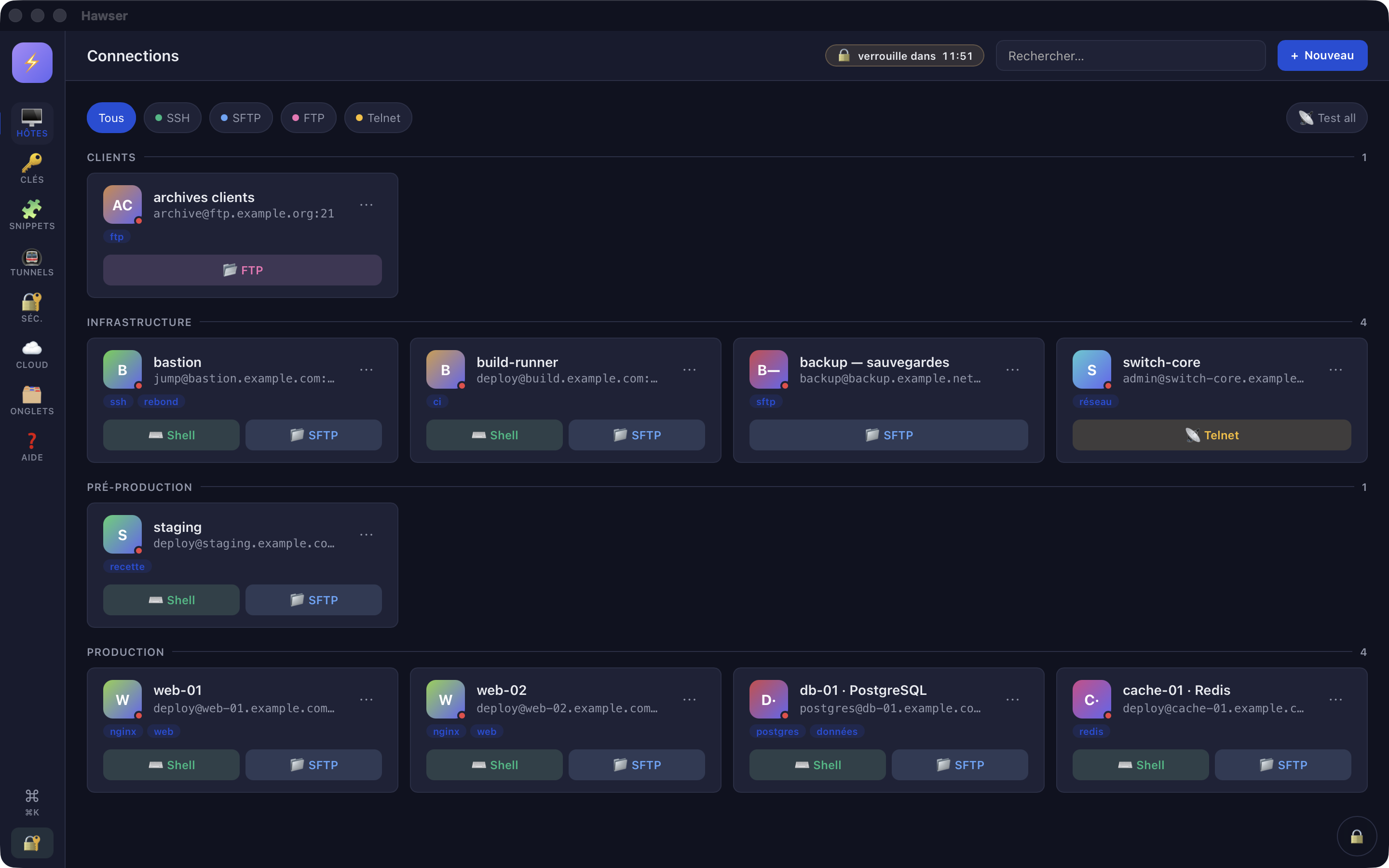
⤴ after the port means the connection hops through a bastion.The ⋯ menu
The ⋯ button at the top right of a card is the only route to editing, duplicating and deleting. There is no other button for it.
✏️ Editopens the entry.📡 Testfails every time in this version (see below).📋 Duplicateimmediately creates a full copy — password and key reference included — named “<name> (copie)”. No window opens: the copy is saved as it stands.🗑️ Deleteasks for confirmation in a “Delete connection” window, then deletes.
Grouping entries
The group is set in the entry itself, under the “General” tab, in the “Groupe” (Group) field. It is free text, with an autocomplete list built from the groups already used in the vault.
- In the Hôtes view, click
⋯on the card, then✏️ Edit. - “General” tab, “Groupe” field: type a name, or pick one from the list offered.
Save. The card moves under its group header in the list.
Cards are then laid out under headers sorted alphabetically, with the number of entries on the right. Entries with no group come last, under the “— Sans groupe —” (No group) header; that header only appears if at least one real group exists elsewhere.
Tags, search and filters
Tags
“General” tab, “Tags (séparés par virgule)” (Tags, comma-separated) field. For example prod, web, paris. Tags appear on the card and, unlike the group, they are covered by the search.
Search
The “Rechercher…” (Search…) field in the top bar filters as you type, case-insensitively, on a plain substring. It matches what you type against the name, the host, the user name and the tags of each entry. This field only exists in the Hôtes, Clés (Keys) and Snippets views.
Protocol filters
Below the top bar: “Tous” (All), “SSH”, “SFTP”, “FTP”, “Telnet”. Only one chip is active at a time, and the filter combines with the search. When the combination leaves nothing, the view shows “No matches — Adjust your filters or search term.”
Knowing which servers answer
The dot at the bottom right of each avatar shows the result of the last test: green with the response time in milliseconds, red with the system error message, grey with a “non testé” (not tested) tooltip. Hover over it to read the detail.
The 📡 Test all button, to the right of the filter bar, runs the test again on every entry in parallel, with a 3-second timeout per host. The same sweep starts automatically at launch, then every 60 seconds. The action also exists in the palette, under the name “Test tous les hôtes” (Test all hosts).
The ⌘K palette
⌘K (or Ctrl+K) opens the palette from any view. Mouse equivalent: the ⌘ button at the very bottom of the left-hand rail. It gathers into a single list:
- your hosts, badged “HÔTE” (Host), with
user@hostas the subtitle — confirming opens the session, exactly like clicking the card's main button; - your snippets, badged “SNIPPET”;
- the actions “New connection”, “New SSH key”, “New snippet”, “New tunnel”, “Test tous les hôtes”;
- the three import and export entries, badged “IMPORT” and “EXPORT”.
↑ and ↓ move the selection, Enter runs the entry, a click on the background closes it. The filter matches the name and the subtitle concatenated, as a substring.
Importing a ~/.ssh/config
The import only exists in the palette. The three icons in the top bar that used to open it are permanently hidden, in every view. The empty-vault screen nevertheless invites you to import “with the 📥 button above”: that button is no longer displayed, so do not look for it.
- Open
~/.ssh/configin an editor and copy its contents. Hawser is sandboxed: it does not read the file itself, and the import window has no file picker. - ⌘K, then “Importer config OpenSSH (~/.ssh/config)” (Import OpenSSH config).
- “OpenSSH config” tab, active by default: paste into the large text area.
Import. The confirmation reads “N hôte(s) importé(s)” (N host(s) imported) and the cards appear.
The parser reads four directives: Host, HostName, User, Port. Each entry becomes an SSH host using password authentication, with an empty password. Comments and entries whose name contains * are discarded.
If the vault is paired with a cloud account, the number of items is checked before the addition. Beyond the plan's quota, the “⚠ Quota cloud atteint” (cloud quota reached) window blocks the whole operation: there is no partial import.
The “Full JSON” tab
The same window has a second tab, which accepts an object containing configs, keys and snippets and adds them to the vault as they are.
Termius, Royal TSX, SecureCRT
The palette offers “Importer depuis Termius / Royal TSX / SecureCRT” (import from Termius / Royal TSX / SecureCRT). The window is complete: a list of formats, a file picker, a paste area. It does not succeed in this version.
The parsers do exist on the engine side, and what they expect does not always match what the window announces. Worth knowing if you are preparing your files for a fixed version.
| Source | What the window says | What the parser actually expects |
|---|---|---|
| Termius | “Termius JSON export” | JSON with a hosts array; each entry carries label, address (or host), port, username (or user). |
| Royal TSX | “Royal TSX .rtsz inner XML”, with instructions to unzip the archive and paste the document.xml | JSON, not XML: an Objects tree with Name, ComputerName, Port, CredentialUsername. Pasting the document.xml would fail in any case. |
| SecureCRT | “SecureCRT .ini config” | A session file: S:"Hostname"=, D:"Port"= in hexadecimal, S:"Username"=, S:"Description"= lines. One connection per file. |
No password is ever carried over from another client, in any of these formats.
Exporting your hosts
⌘K → “Exporter en config OpenSSH” (export as OpenSSH config). A file named ssh_config is produced immediately, with no intermediate window.
# Export from Hawser
Host Web_Prod_01
  HostName web01.example.com
  User deploy
  Port 2222
One entry per SSH or SFTP host. Spaces in the name become underscores. The Port line is only written when the port differs from 22.