Snippets and inspection
Save your recurring commands, replay them on the right server, and read the state of a machine without typing anything.
What a snippet is for
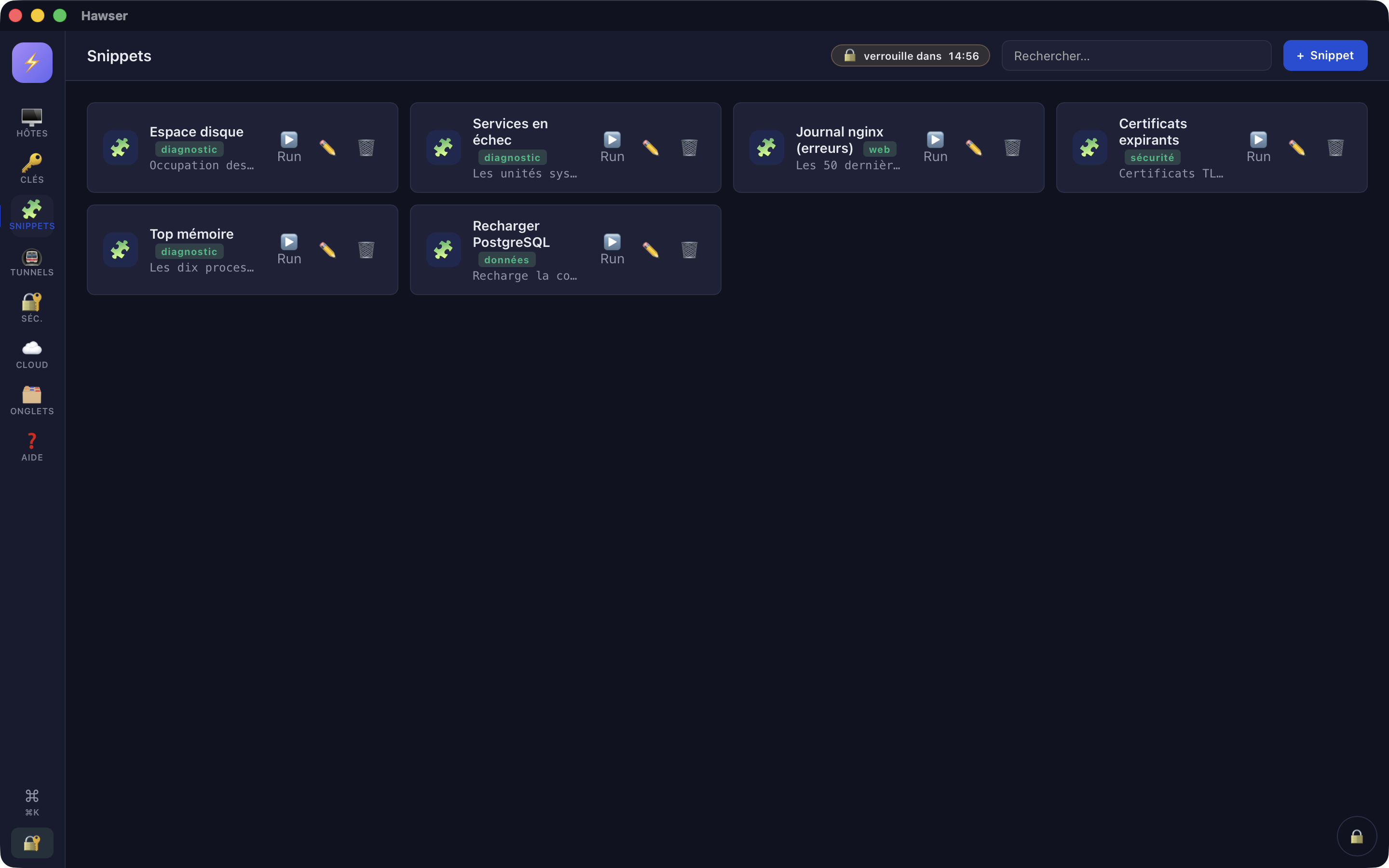
A snippet is a block of shell commands saved in your vault: a name, a tag, a description and a body of as many lines as you need. It can be replayed in an open terminal, when a connection opens, or outside any session on an exec channel.
The body is encrypted just as a password is, inside the .ivault file (see What is encrypted). The write is synchronous: the confirmation message appears only once the bytes are on disk.
The view opens from the left navigation rail, 🧩 Snippets button, fifth icon. That is the only route: there is no macOS menu entry and no keyboard shortcut for this view.
Creating a snippet
Snippetsview →+ Snippetbutton, top right. From another view,⌘KthenNew snippetdoes the same thing.- Fill in the four fields of the
New snippetdialog. - Click
Save. The messageSnippet savedconfirms and the list refreshes.
| Field | What it does |
|---|---|
Name | The name shown in the list, in the ⌘K palette and in the numbered picker of a tab. Required. |
Tag | A free-form label (ops, diag…), shown as a pill. It is one of only two fields the search covers. |
Description | A single line of explanation, shown under the name. |
Contenu | The commands themselves. Required. The full field label is Contenu (multi-lignes, supporte {{host}} {{user}} {{port}} {{date}}) (Body, multi-line, supports…). |
If the name or the body is missing, the message Name and body required appears in red and nothing is saved. If the vault has locked between opening the dialog and clicking Save, no vault open appears instead: unlock, then type it all again — nothing is kept.
The ✏️ button on a tile reopens the same dialog, titled Edit snippet, with the fields prefilled. The 🗑️ button asks for confirmation (Delete "<name>"?) before removing the entry.
The four variables
Four patterns are substituted in the body, at each run rather than when you save, from the entry of the host being targeted. Every occurrence is replaced.
{{host}}— the Host field on the entry{{user}}— the User field{{port}}— the port{{date}}— the date and time in UTC, ISO format, for example2026-08-12T14:23:45.678Z
echo "=== Rapport {{host}} — {{date}} ==="
df -h | sort -k5 -r | head -12Running a snippet in an open session
Three routes lead to the same result: the interpolated body is typed into the terminal, followed by a carriage return, exactly as if you had pasted it. A multi-line body therefore runs line by line.
Snippetsview →▶️ Runbutton on the tile.⌘K→ type part of the name or the description → Enter. Snippets carry theSNIPPETlabel there.- In a connected SSH tab: the last button on the terminal bar,
🧩, after🔄,⏺️,📊 Server,🐳 Docker,☸️ K8s.
The picker behind the 🧩 button opens a Run snippet dialog that lists your snippets with numbers (1. …, 2. …) and waits for you to type the number into the Enter snippet number field. It is not a clickable list. A number that is empty, non-numeric or off the list triggers nothing and shows no message: the dialog closes and nothing happens. With no snippet saved at all, the button answers No snippets defined.
Running a snippet with no session open
If no SSH tab is open, ▶️ Run behaves differently: Hawser opens a transient connection, runs the command on an exec channel (the equivalent of ssh server "command"), closes it again, and shows the result.
Snippetsview →▶️ Run.- Read the confirmation
Run "<snippet>" via SSH (ssh-exec) on "<host>" ?and check the host name it announces. - Click
Run. TheSnippet outputdialog showsSTDOUT:, thenSTDERR:if the error output is not empty, then anExit:line.
▶️ Run opens a transient connection instead of targeting a terminal.This channel is not a login shell: the PATH is the SSH daemon's, not the one from your ~/.bashrc. A binary added to the PATH by your profile will not be found, and an interactive sudo has no way of receiving a password.
Possible error messages, in red: No connections SSH (no SSH tab open and no SSH host in the vault), Host introuvable (host not found), Clé SSH introuvable (vérifie l'host) (SSH key not found) if the key the entry refers to has been deleted, Jump host introuvable, and jump host chain too deep beyond four hops.
Running snippets when a connection opens
An SSH host entry can name snippets to be played automatically as soon as the shell is ready.
Hostsview →✏️on the host card (see Adding a server).Advancedtab of the entry →Snippets de démarrage (un par ligne)(Startup snippets, one per line) field, subtitledExécutés à l'ouverture d'un shell SSH(run when an SSH shell opens).- Click a snippet to select it, Cmd-click to add others.
Save. The next time a shell opens, the chosen snippets go into the terminal half a second after the connection.
- The execution order is the order of the list, not the order in which you clicked.
- Startup snippets are replayed at every automatic reconnection after a drop, and every time you press
🔄. Avoid anything that cannot be replayed harmlessly. - A tab that is already open keeps the entry as it stood when it opened: changing the selection only takes effect on the next tab.
- The field does not exist for FTP and Telnet hosts.
Finding and organising snippets
The search field in the top bar filters the list as you type, on the name and the tag only. Description and body are not searched. The ⌘K palette, for its part, searches the name and the description, but not the tag. The same string therefore does not always give the same results on both sides.
With cloud synchronisation, snippets travel encrypted along with the rest of the vault. The server learns how many you have, never their names or their contents. They do not count towards the item quota: creating a snippet is never refused, even on the free plan.
The inspection dashboards
Three buttons on the bar of an SSH tab query the remote machine and lay out the result, with nothing to type. All three work. They appear only on an SSH tab: an SFTP, FTP or Telnet tab has none.
How they all work: each section opens a new SSH connection, runs its command on an exec channel, then disconnects. The shell of your tab is never used. Expect nine successive connections for 📊 Server, eight for ☸️ K8s and a single one for 🐳 Docker.
📊 Server
Nine sections filled one after the other, with an n / 9 counter and a status per section (⏳ en attente (pending), récupération… (fetching), ✓ chargé (loaded), ⚠ erreur (error)): OS and kernel, Uptime · charge (uptime and load), CPU, memory, disk, top processes by memory, top processes by CPU, network, active sessions. The commands fall back to a macOS variant where the Linux one does not exist. This dashboard never attempts sudo and asks for no special privilege.
🐳 Docker
A single compound command brings back docker info, docker ps -a, docker stats and docker system df. The screen shows a Docker stack header with the number of containers, the number of images and the space used, four tiles — Running / CPU / Memory / Network — then the list of containers with their health pill. A ↻ Refresh button runs the capture again, and a Sortie brute (raw output) link shows the uninterpreted response.
If the daemon refuses access to the socket, Hawser detects it and offers 🔒 Docker — accès refusé (access denied) with Réessayer avec sudo (retry with sudo) and Annuler (cancel) buttons, then offers to remember the preference on the host entry. The same mechanism exists for ☸️ K8s, under the title Activer sudo pour kubectl (enable sudo for kubectl).
☸️ K8s
Eight plain-text sections, n / 8 counter: cluster-info, nodes, namespaces, pods, services, deployments, ingresses, PVCs. The server needs kubectl in the PATH of the SSH daemon and a kubeconfig that can be read without an environment variable, so ~/.kube/config.